General
Your new evon Smart Home can be controlled either conventionally via the pushbuttons mounted on the wall, or also via your PC, tablet or your smartphone. This way, you have your evon Smart Home with you all the time. You have full access to all functions that make your life easier, from your sofa or when you are traveling.
Connecting
In order to be able to control your home via the app, your must first connect to your system. Simply follow these simple steps.
WiFi Connection
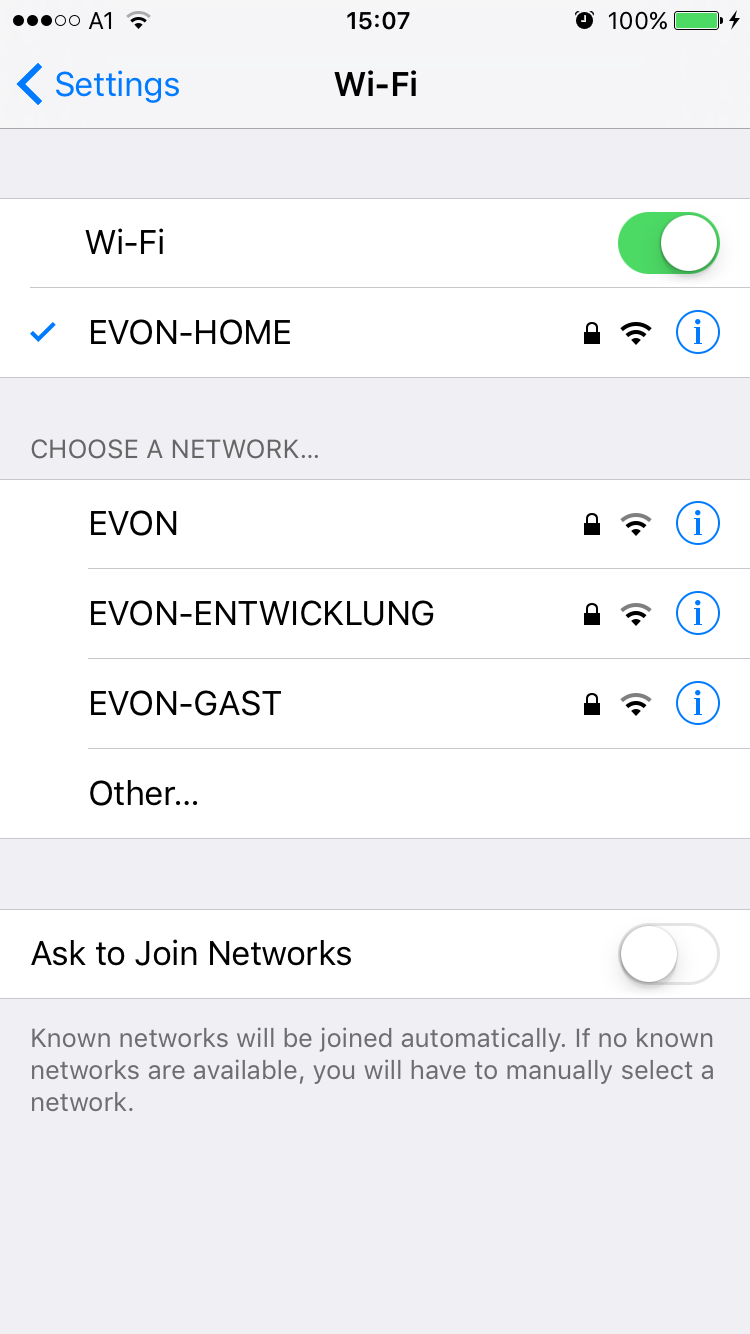
Before your activate your evon Smart Home app, make sure you are connected to the same network as your evon Smart Home controller. Simply go to the WLAN settings on your device and check the currently selected WLAN, or connect to the correct one.
In case you switch on your evon Smart Home CPU for the first time and it does not receive a valid IP address after several attempts (DHCP), it will automatically switch to the following static address:
IP-address: 192.168.50.50
Subnetmask: 255.255.0.0
If you are using the WiFi dongle to connect to evon Smart Home the controller will always use 192.168.192.1 as its IP address.
Home Screen
Once you have successfully installed the app via the AppStore, the app is located on the home screen. You can start the app directly from here. After a short time to load the app, you will see the start page of the app.
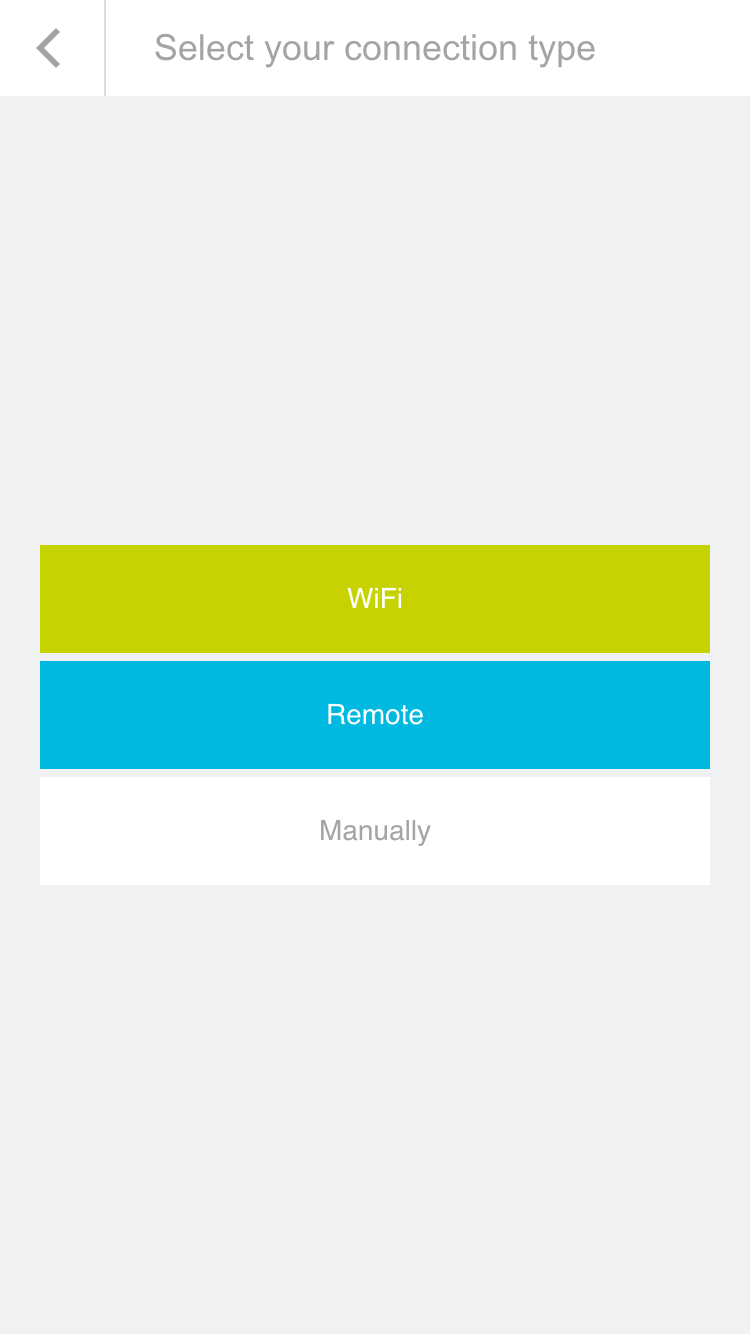
From here, search for the available evon Smart Home systems. The selection is either a connection via a local Wi-Fi/WLAN or the internet (e.g. mobile network provider via a secure HTTPS connection).
If you are configuring evon Smart Home for the first time, select “Wi-Fi” in order to search for your system via the local WLAN.
Start Search
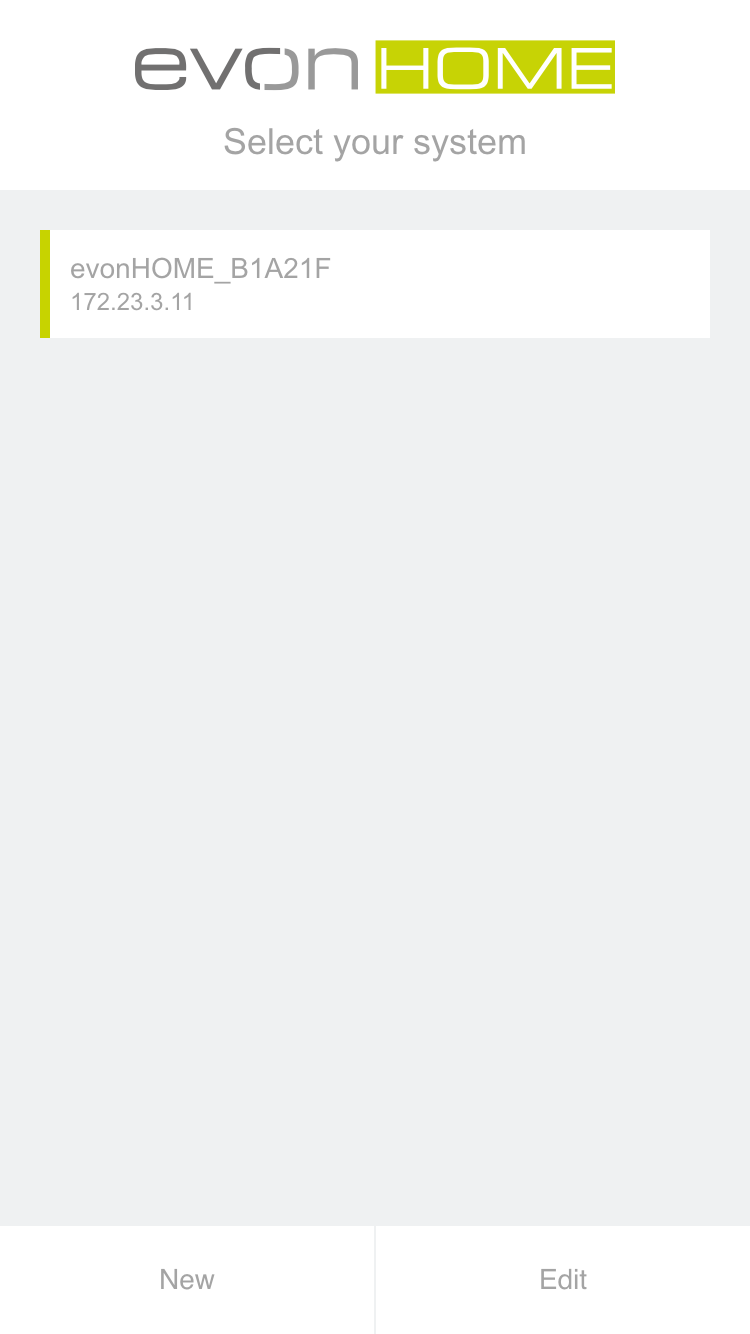
The evon Smart Home app will now search for all system in your network. As soon as one or more have been found, they will be displayed along with their allocated IP address. Your new system will be listed with the default name evon Smart Home + unique identification number (e.g. evon Smart Home_1234AB9). You can change the name later, if your wish.
Once you have selected your evon Smart Home system, the next thing you must do is login.
Login
After selecting the evon Smart Home system, you will find yourself on the login page.
Enter your username and password. You can also determine whether you wish in future to login automatically with your login data.
To make it easier for you to login to your evon Smart Home on your first configuration, there is also the option to do this by using a QR-code. Use the green button on the top right corner of the login screen to use this feature.
Point the camera at the QR-code, which you will find in your enclosed documents, and position it at the center of the marked area. once the QR-code ist successfully recognized, the associated login field will be filled in.
You have now successfully connected to your evon Smart Home system and can start to control your home.
To connect for the first time, use the username and password or QR-code provided for you in the enclosed documents.
Browser
Besides accessing your evon Smart Home system with the official app, you can also connect to it with any modern browser (e.g. Chrome, Safari, Edge). You only have to know the IP-Adress (Which is displayed in the app once your system is found).
When you enter the address in the url bar of your browser, you will be directed to the login page, where you will have to enter your credentials. You can then use your evon Smart Home system like you are used to.
If you connect to your evon Smart Home system with a browser (e.g. Chrome), some device specific functions from the mobile App may not be available to you. These include, among others, native notifications, which also appear when the app is currently not in use.
Grundeinstellungen
Diese Grundfunktionen sind bei jeder Installation erforderlich und sorgen dafür, dass das System korrekt funktioniert und betrieben werden kann. Alle weiteren Einstellungen oder Funktionen hängen von den eingesetzten Komponenten ab und werden entsprechend separat konfiguriert.
Systemzeit überprüfen
Prüfen, ob die Systemzeit korrekt gesetzt ist, damit Funktionen wie Zeitpläne zuverlässig arbeiten. Mehr Details findest du über den zugehörigen Link.
Link zu den Zeit-Einstellungen
Updatestatus überprüfen
Sicherstellen, dass das System auf dem aktuellen Stand ist und wichtige Verbesserungen oder Sicherheitsupdates installiert sind. Weitere Informationen erhältst du über den Link.
Link zu den Zeit-Einstellungen
Bereiche / Räume erstellen
Räume und Bereiche anlegen, um Geräte sauber zu strukturieren und später leichter zuordnen zu können. Ausführlichere Hinweise findest du über den Link.
Link zu den Zeit-Einstellungen
Naming
After you have connected via the evon Smart Home app to your evon Smart Home system, you should name all of the connected devices (lights, blinds, heating circuits, etc.) and allocate them to a room. This helps you to not only find and operate them easier, but also to access further functions.
Select
Open “lights”, “blinds” or “room climate”, depending on the items you wish to modify the names and rooms.
The app shows you a list of central functions and below that a list of your elements – this corresponds to the channels of your evon Smart Home modules. More detail concerning the central functions can be found in the corresponding documentation.
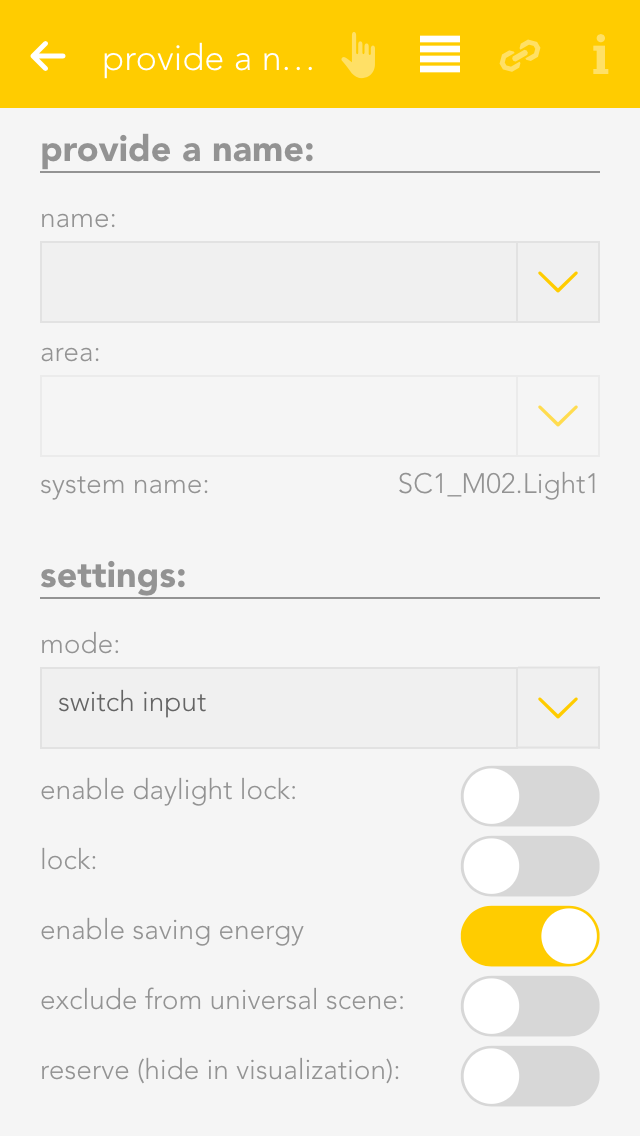
Tap on the area that displays the name and the room, in this case “ no name”, “no room” to open the settings for this device.
Provide Name and Room
Enter the name of the device in the field “name”. You can type any name in here, or use a predefined name by tapping on the small arrow.
Tap on the field to select a room. The system already has a predefined few names that you can use. If you cannot find a suitable room in the list, create one in the settings -> areas and custom rooms.
You do not need to specifically save your changes, simply tap on the arrow symbol in the menu bar.
Choose a distinctive name depending on the device and purpose like: ceiling light, ambient, radiator or wall heating.
Benutzer und Benutzergruppen
Benutzer und Gruppen anlegen oder verwalten, um Zugriffsrechte sauber zu strukturieren und Rollen im System sinnvoll zu vergeben. Weitere Details findest du über den angegebenen Link.
Link zu den Zeit-Einstellungen
Externen Zugriff einrichten
Zugriff von außerhalb konfigurieren, damit das System auch unterwegs sicher und zuverlässig erreichbar ist. Alle weiterführenden Informationen stehen im verlinkten Abschnitt.
Link zu den Zeit-Einstellungen