Configuration
Once you have connected the evon Smart Home app with your evon Smart Home, there are just a few steps to be taken in order to adapt your evon Smart Home to your requirements.

Once you have connected the evon Smart Home app with your evon Smart Home, there are just a few steps to be taken in order to adapt your evon Smart Home to your requirements.
You can allocate different rights in your evon Smart Home to users, for example so that children can only use functions in the children’s room. The rights are controlled via the user groups.
You can find users and user groups in “all apps” – “settings”.
A user allows you to control exactly the rights for your evon Smart Home.
You can add a new user here or configure an existing one. To add a new user, simply select “add user”. This opens a panel where you can enter the user name and an optional description. Enter a password for the user so that you can login using the username.
Profile picture
The profile picture to be displayed for this user.
Background picture and text colour
You change the background of your visualization as you wish. The text colour selects the colour of titles such as “favourites” on the home screen so that they are readable, even with other background pictures.
Show areas on the home screen
This setting lets you define whether areas will be displayed on this user’s home screen.
Own favourites
If you activate the option “own favourites”, you can customize the favourites on your own home screen without these changes being visible to other users. If this option is deactivated, then your favourites are shared with other users and any changes will be visible to all users.
Language
This lets you change the language for this user. To change the language of the current user, click on “load new language settings”.
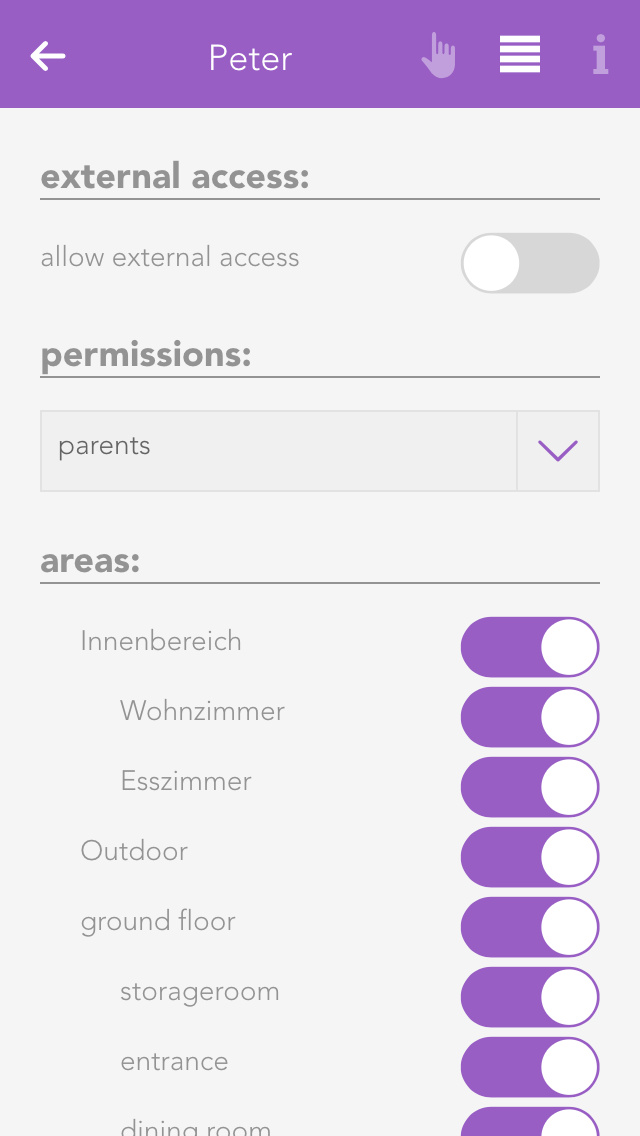
Permit external access
The option “allow external access” lets you decide whether this user is permitted to connect to your evon Smart Home externally.
Rights
This allows you to allocate rights to this user. If you want to allocate rights independently from a group, simply select “user defined”. The individual rights are explained further down the screen. If the user is to have no rights, simply select “no rights”.
Areas
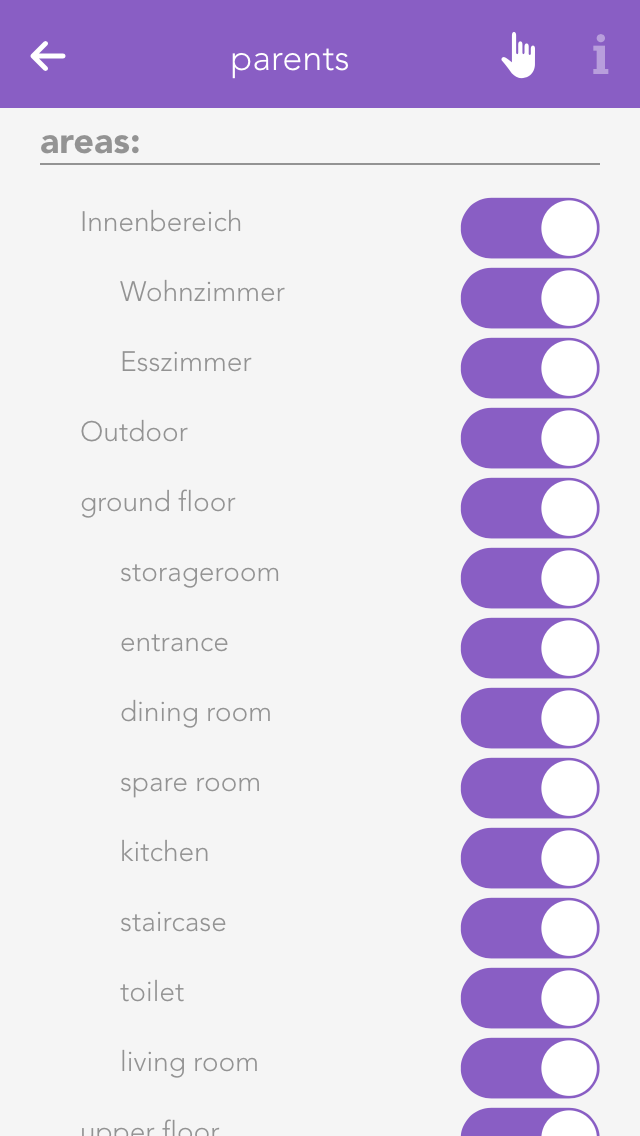
The section “areas” lets you select which the areas this user is to have access to. If you have allocated this user to a user group, the rights in this group have already been defined for this area and hence you only have the possibility to limit the rights for individual areas further.
Some changes cannot be made to the user you have used for your login. So for example you cannot withdraw administrator rights or delete the current user.
User groups allow you to configure rights for several users.
The settings can be modified for a user group that already exists, or a new one can be created. To create a new user group, click on the element “add group”. This opens a panel where you can enter the name of the group (e.g. “guests”), and assign colour and an icon.
Rights are used to limit what a user in this group is allowed to do in your evon Smart Home.
Admin
This level of rights gives the user full access to all possibilities in the system. All the following rights are deactivated, since they are all included in the admin rights.
Change parameter
Users in this group are allowed to change parameters, i.e. all settings accessible via the parameter symbol.
Manage settings
The user can open the settings (all apps – settings) and make changes. Exceptions are the user settings.
Manage home screen
The user can change the start page of the app, in other words, they can set favourites and move elements. See also “own home screen”.
Add object
The user can add new objects to the system, for example a new surveillance camera, a new Denon system, etc.
Edit logic
The user can create and edit logic elements.
Edit scenes
The user can create and edit scenes; otherwise scenes can only be executed.
Edit area
The user can create and edit areas.
Execute universal scene
The user can execute universal scenes such as close all blinds, switch on all lights, etc.
See all apps
The user can open all apps, otherwise they only have the possibility to open apps that are on the home screen.
See notifications
Notifications are displayed for the user (such as wind, alarm system, etc.).
In “areas”, you can define which areas the users in the group will be able to access.
Use the app “areas” to organize your evon Smart Home into rooms and elements within the rooms (e.g. lights, blinds …). This way, you will be able to find them quickly.
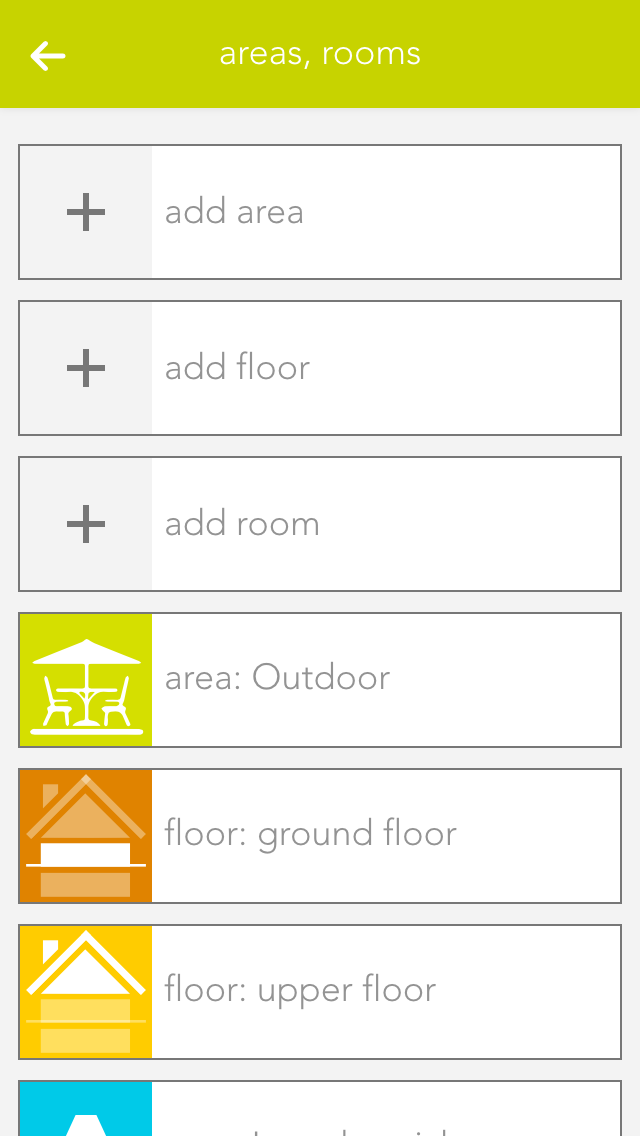
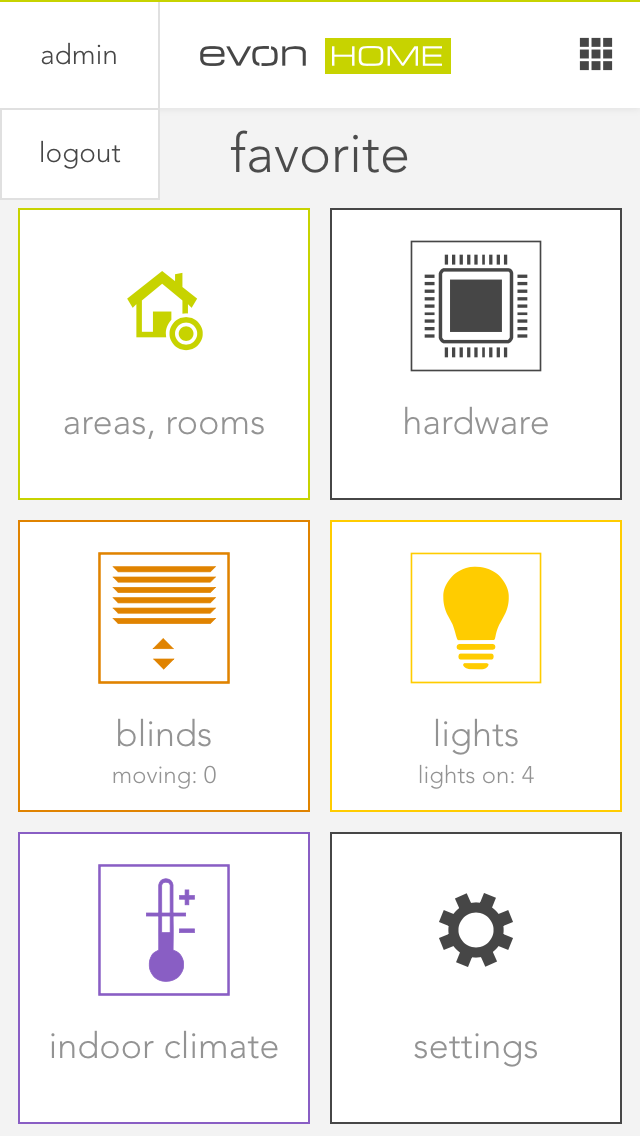
Your previously defined rooms will be displayed on the home screen (as long as they contain elements). To modify the rooms, open the “settings” app and select “areas, rooms”.
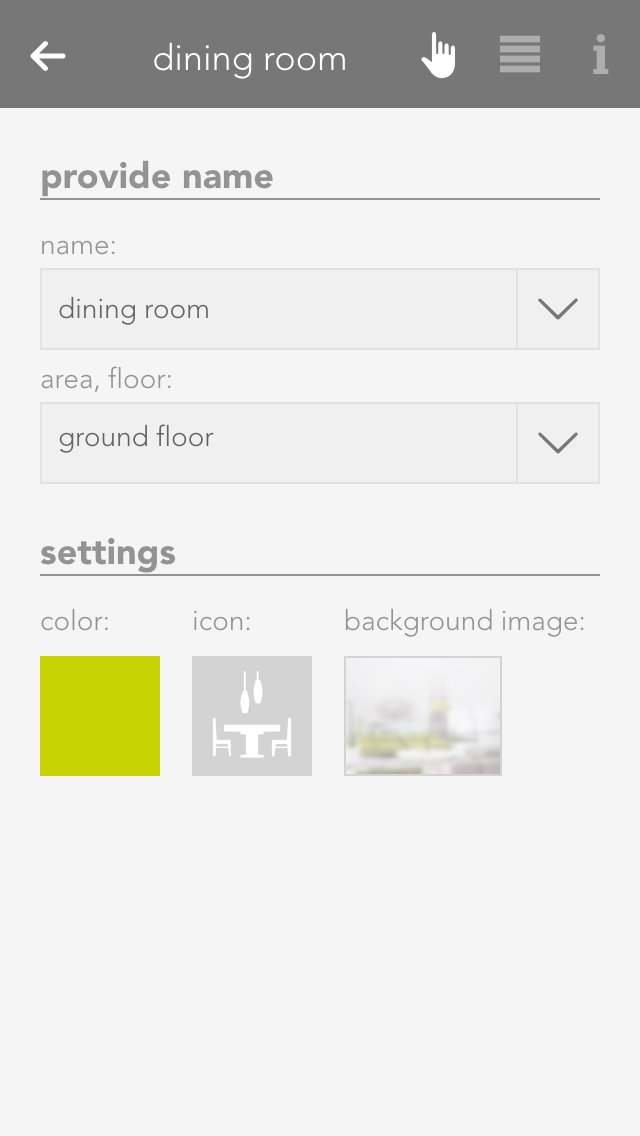
In order to add rooms, areas and floors to your evon Smart Home, simply tap on the corresponding element (e.g. “add room”). This automatically opens the operator panel for the added element. Enter the name into the field “name” and an abbreviation in the field “abbreviation” for the room. If you want to allocate this new room to a floor, simply select the floor you want. If you want to move the area back to the highest level, select the empty entry in “area, floors”.
Alternatively you can first navigate to a floor and add a room there.
If you wish to personalize your rooms, you can select colour, icon and background picture for your room. Do this by opening the operator panel for the room via in “settings” – “areas, rooms” and select the element under “settings” and modify it.
Open the area via the button “edit” and view the elements for this area. If you want a shortcut to an area, simply click on the area of the symbol in the object panel (left).
You can also link each room with a room thermostat. Do this by allocating an element to this room in the app room climate. If you have allocated more than one room thermostat to a room, you can use the parameter panel of the room to select the room thermostat you wish to use for the room temperature display.
In den erweiterten Einstellungen können Sie angeben welche Elemente zur Berechnung und Anzeige des Raumklimas verwendet werden sollen. Außerdem können Sie hier das Raumklima des Raumes ausblenden.
Wenn Temperatur-, CO2-, Feuchtigkeits- oder Geräuschsensoren dem Raum zugewiesen wurden, wird im Raum das Raumklima angezeigt.
Je nach Zustand des Raumes wird hier ein Gesundheitswert berechnet welcher von "Hervorragend" bis "Sehr schlecht" reicht. Wenn sich der Zustand des Raumes verschlechtert bekommen Sie eine Benachrichtigung über den verschlechterten Zustand.
In den Einstellungen des Raumklimas können Sie die Benachrichtigungen deaktivieren.
Außerdem können Sie hier die optimalen Grenzwerte des Raumes anpassen.
This app lets you send email notifications via an existing email account. The “test mail” function is used to test the configured settings. You will need to obtain the required settings for the SMTP server from your email provider.
You can either send a test email or you can select “send email” in the “system” tab in a scene “if …” statement. Then all you need to do is enter the sender, recipient, subject and text.
If you wish to register with your Gmail account, then you must allow “less secure apps” in your Gmail account. Simply open the link to the Google Config and click “activate”.
If you are currently not at home, but would still like to have access to your home control, then you can use the external access provided by your evon Smart Home system. If you have activated this option, you can access your system from anywhere in the world assuming there is an Internet connection, just as if you were at home.
The configuration for external access is located under “all apps” – “settings”.
Activate the function for external access in the settings by placing a tick next to it.
As soon as you have activated the function, the displayed status changes from “not connected” to “connected” and the evon Smart Home ID appears. This ID is required to connect you to your evon Smart Home system. It is a good idea to write this ID down, you will need it in the next step.
This evon Smart Home ID gives you the ability to access your system from a normal web browser (via
my.evon-home.com).
Return to the main screen. On the top left is your current username. If you click on it, the logout button will appear. Logout via this button.
You will now be on the start screen of the evon Smart Home app, which shows a list of all your previously connected systems.
Click on “new” to create a new connection. You will now see an overview of all possible connection types, as described previously.
Select “internet” as the connection type. You must enter the evon Smart Home ID in the next screen, along with your username and password. When done, connect via the button at the bottom of the screen.
As soon as you have successfully connected to your evon Smart Home system via the external connection, this connection will appear on the start page of your evon Smart Home app. You can now easily select this connection at any time.
The first external connection to your evon Smart Home system can take some time. Even once the connection has been established, please wait until all data has been uploaded before your quit the app.
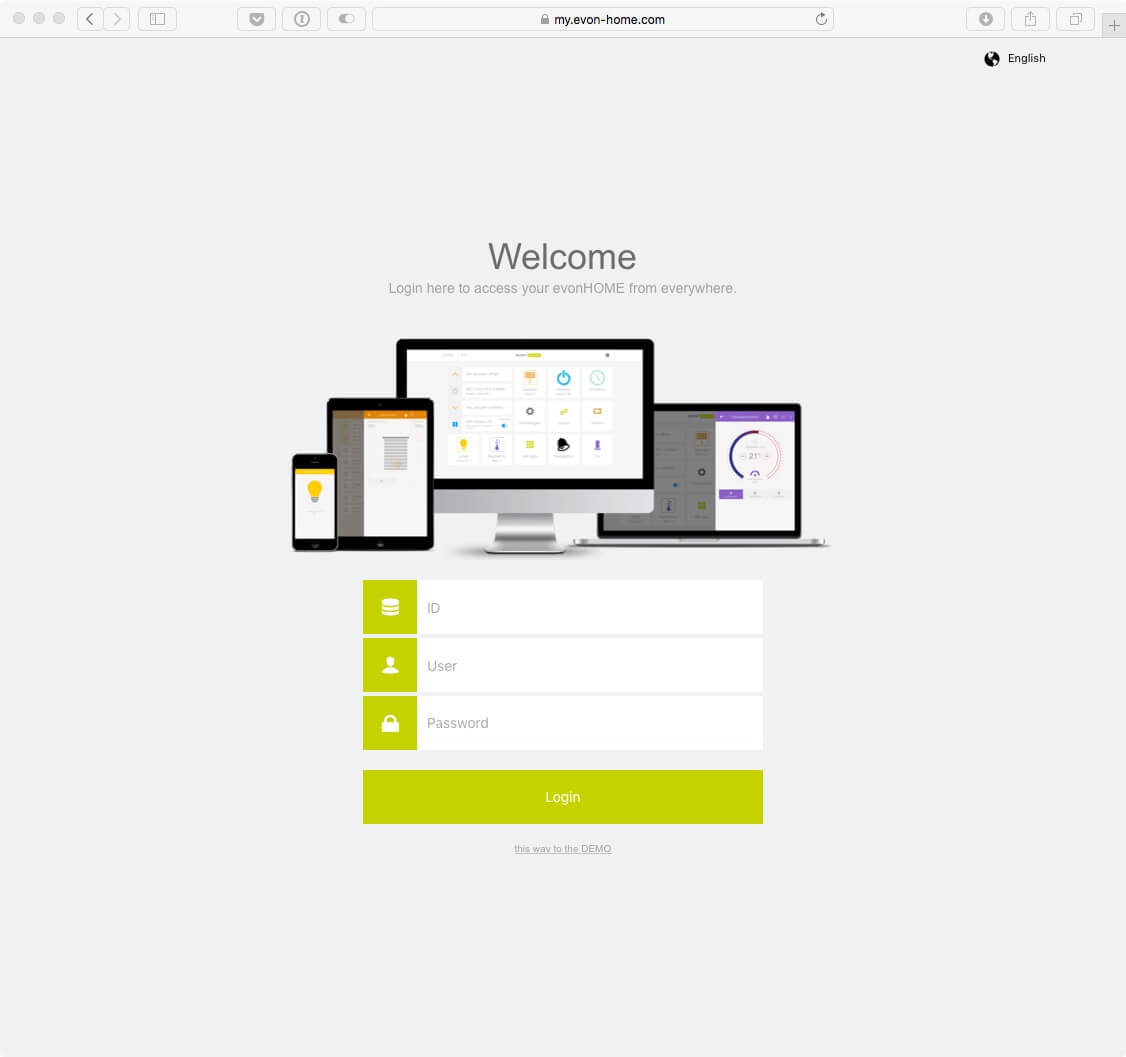
Once you activate the external access, you can connect to your evon Smart Home system from every supported browser (Safari, Chrome, Edge).
Go to the website my.evon-home.com and login with your credentials. In addition to your user name and password, your will also require the evon Smart Home ID, which you received by activating the external access.
If you connect to your evon Smart Home system with a browser (e.g. Chrome), some device specific functions from the mobile App may not be available to you. These include, among others, native notifications, which also appear when the app is currently not in use.
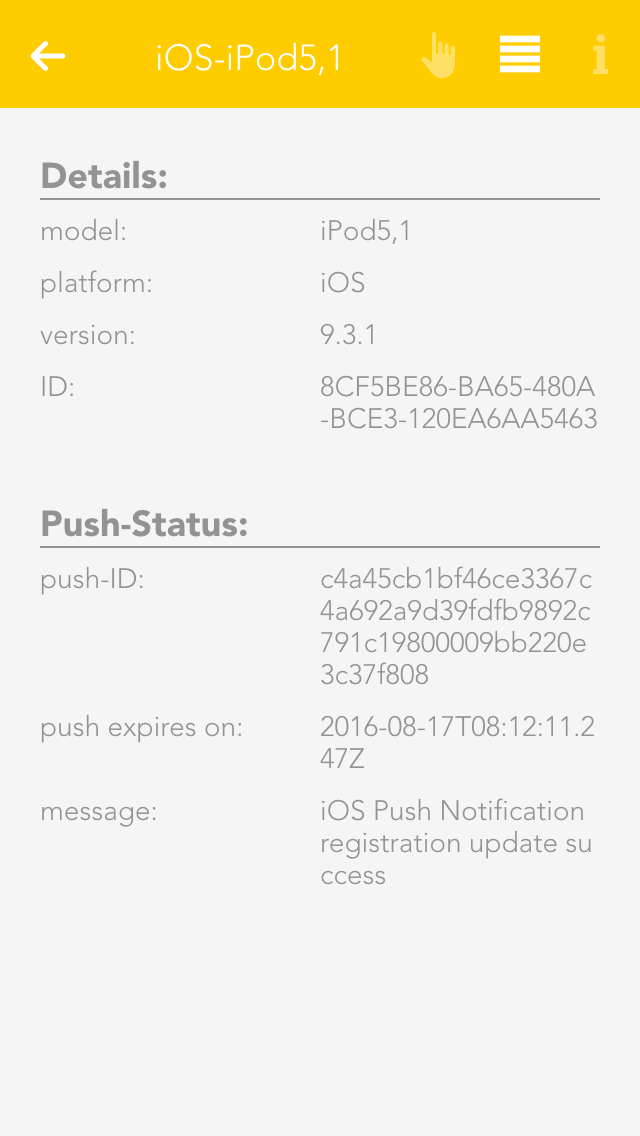
The “devices” app shows you all mobile devices that have been registered in your system.
The “devices” app is under “all apps” – “settings” – “devices”.
If you open a device, the display shows you the name and model of the device in the operator panel. The parameter panel shows detailed information concerning the device.
If you wish to receive notifications on this device (e.g. window is open), then you need to activate the checkbox “receive push notifications”.
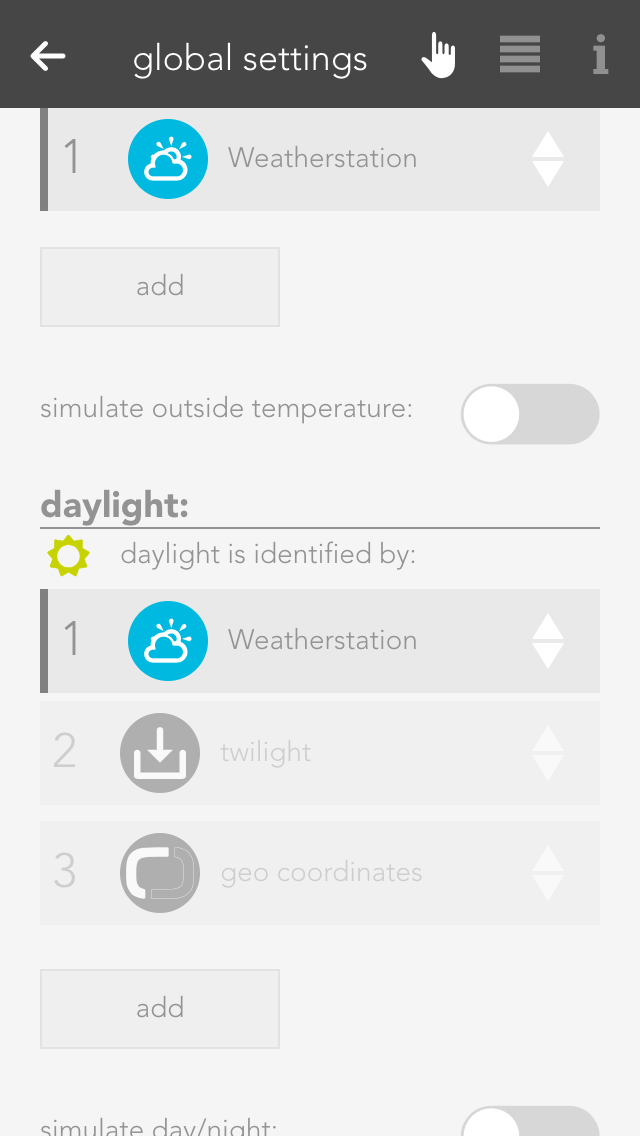
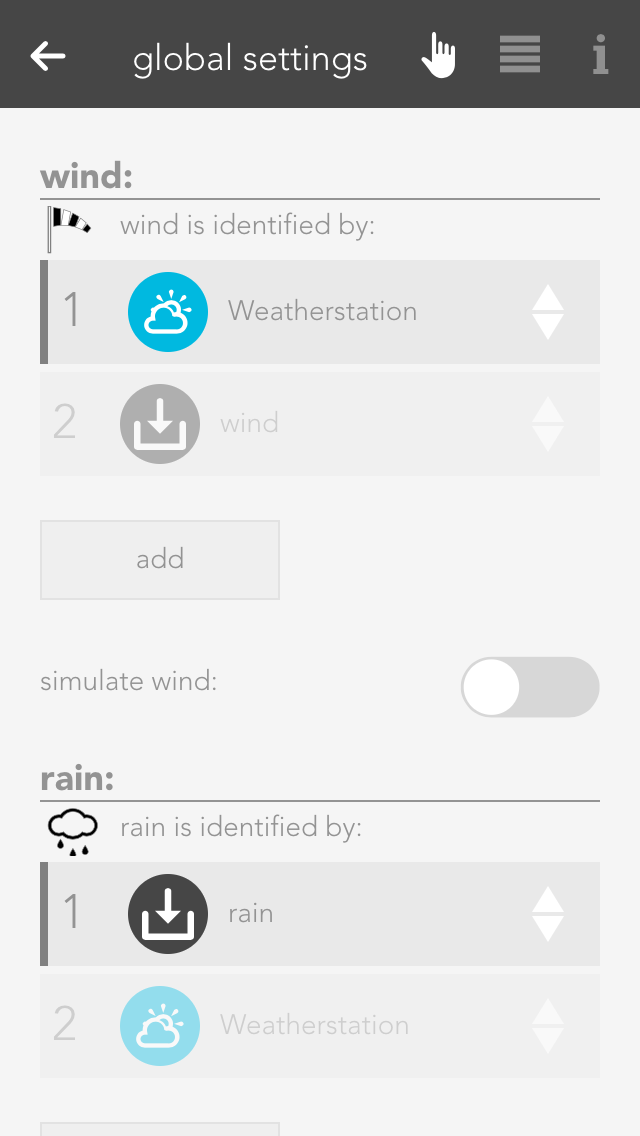
Global settings let you define what is responsible in your evon Smart Home for activating wind, rain, frost, dusk states. For example, if you have connected a rain sensor, this is where you would find the settings for your system to display whether it is raining or not. The global settings can be found under “all apps” – “settings”.
In the “Rain” section, the method used to detect precipitation can be defined. Precipitation can be detected directly via the evon Smart Home weather station or by using any digital signal. In this case, an active signal indicates rain.
Any digital signal can be added using the “Select another value” function.
In the “Sunrise/Sunset” section, the method used to determine day and night can be configured. Detection can be based directly on the evon Smart Home weather station, on the geographic coordinates combined with the current time, or on any digital signal. In this case, an active signal indicates night.
The weather station can be connected using the “Select sensor” button.
Any digital signal can be added using the “Select another value” function.
Selecting “Use geographic coordinates” opens a pop-up window in which the current geographic coordinates can be entered. When connected via remote access or the Android app, the location can be detected automatically. The “Is night” signal from the Time app is then linked.
This setting can be used, for example, to close shading elements automatically at dusk.
In the “Wind” section, the method used to detect a wind alarm can be defined. Detection can be based directly on the evon Smart Home weather station or on any digital signal. In this case, an active signal indicates a wind alarm.
Any digital signal can be added using the “Select another value” function.
In the “Outdoor temperature” section, the method used to determine the outdoor temperature can be defined. The temperature value can be provided directly by the evon Smart Home weather station or by a temperature sensor.
The weather station or a temperature sensor can be selected using the “Add” button.
The “Select another value” function can be used to select any numerical value as the outdoor temperature.
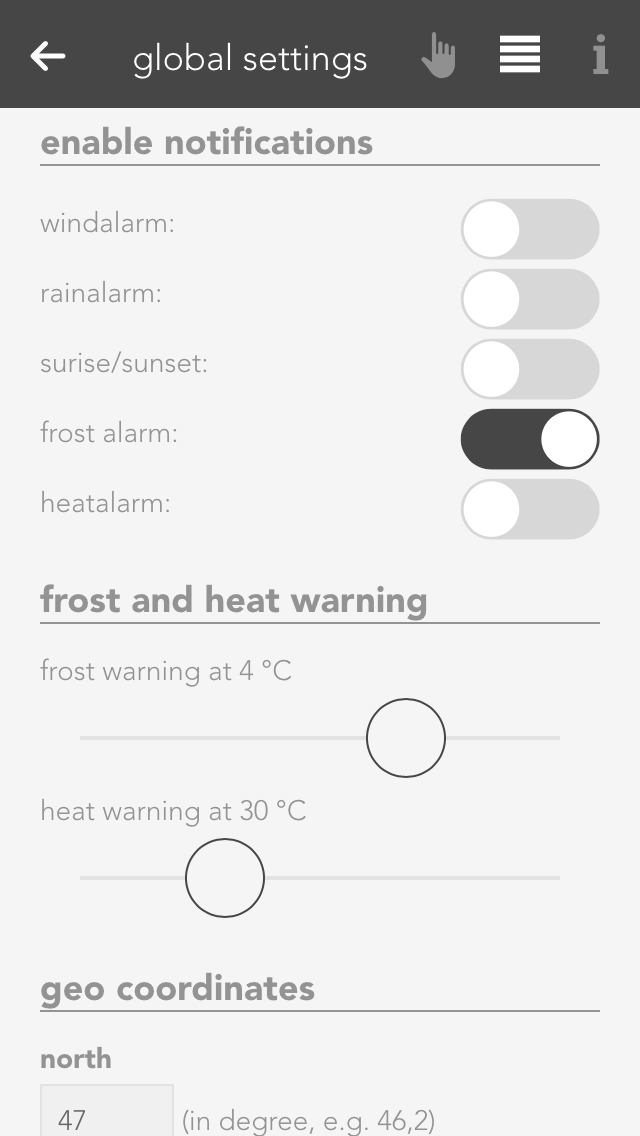
Thresholds for frost and heat warnings can also be defined in the parameter panel. As soon as the outdoor temperature falls below or rises above the respective threshold, a scene can be triggered or a notification can be generated.
The sunrise and sunset times can be calculated using geographic coordinates.
The geographic coordinates can be entered in decimal format. To determine the coordinates, open the desired location in Google Maps at https://www.google.com/maps. Right-click the corresponding position and select “What’s here?”. The geographic coordinates will then be displayed. The first value represents the latitude, and the second value represents the longitude.
The “Get current geographic coordinates” button is only displayed when the application is accessed via a secure HTTPS connection. This usually applies when accessing the application through a browser or the iOS and Android apps. The button is not displayed in local browser environments without HTTPS because location access is unavailable.
To modify the calculated times, the “Adjust sunrise and sunset times” option must be enabled. The sunrise and sunset times can then be offset by a specified number of minutes to occur earlier or later.
To test how the system behaves in certain conditions, such as rain, the corresponding state can be simulated. In the “Rain” section, first enable the “Simulate rain” option and then activate “Rain on”.
The same type of simulation is also available for wind, outdoor temperature, and daylight.
After testing, the simulation must be disabled again, for example by turning off the “Simulate rain” option.
You can define which events for you would like to receive notification of in the parameter panel.
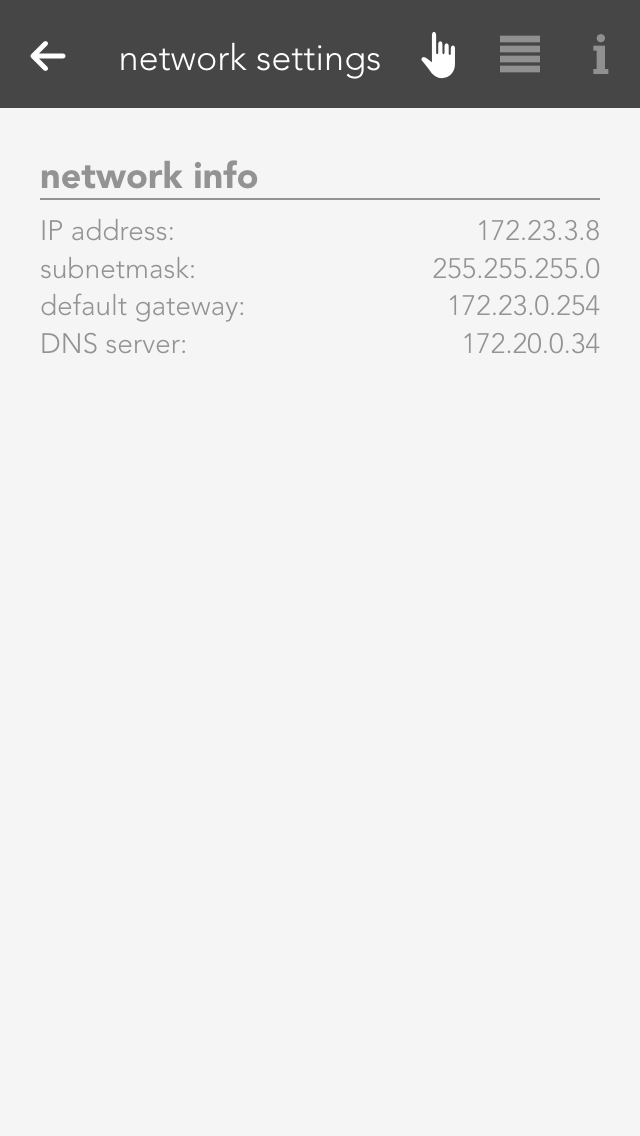
This area contains all network settings for the network used by your evon Smart Home. You can also configure whether the IP address and DNS server should be automatically allocated, or whether you wish to define them yourself.
The updates screen lets you make sure your evon Smart Home is up-to-date. Simply click the button “search for updates” and if an update is available, click “execute update”. If you wish your system to automatically search for updates, activate the setting “search for updates automatically” in the operator panel. You can also see the current version and the time of the last update and the update channel here.
Furthermore, you can create recovery points, which allow you to reset your evon Smart Home to an earlier state if you have inadvertently maladjusted parameters. Such recovery points are recommended once you have named all your lights, blinds, etc. and have set them up as you require. Use the button “reset to factory setting” to reset your evon Smart Home to the original factory settings.
Saved recovery points will be shown in a list, where you can delete, recover, or download them at any time.
You can create one recovery point per day. If you create more, only the last one will be saved. In addition, you can also restore your system with a downloaded recovery file by using the button 'restore local restore point'.
A recovery point of your current configuration is created automatically before every update.
All information pertaining to your system can be found under the item system diagnostics, such as current version, memory used, IP address, etc.
You can also look at cycle times. This is an indication of the load on your evon Smart Home system. You can also see the last five peak values. The cycle time is the time required for a complete run of the program.
Project name
You can give your evon Smart Home any name you like in the system settings.
Controller new start
This function restarts your system. Note that while the system is restarting, you do not have a connection to the CPU.
Manifest
This item shows you whether your visualization is up-to-date. The setting “automatic reload” lets you update your visualization automatically if it is not up-to-date.
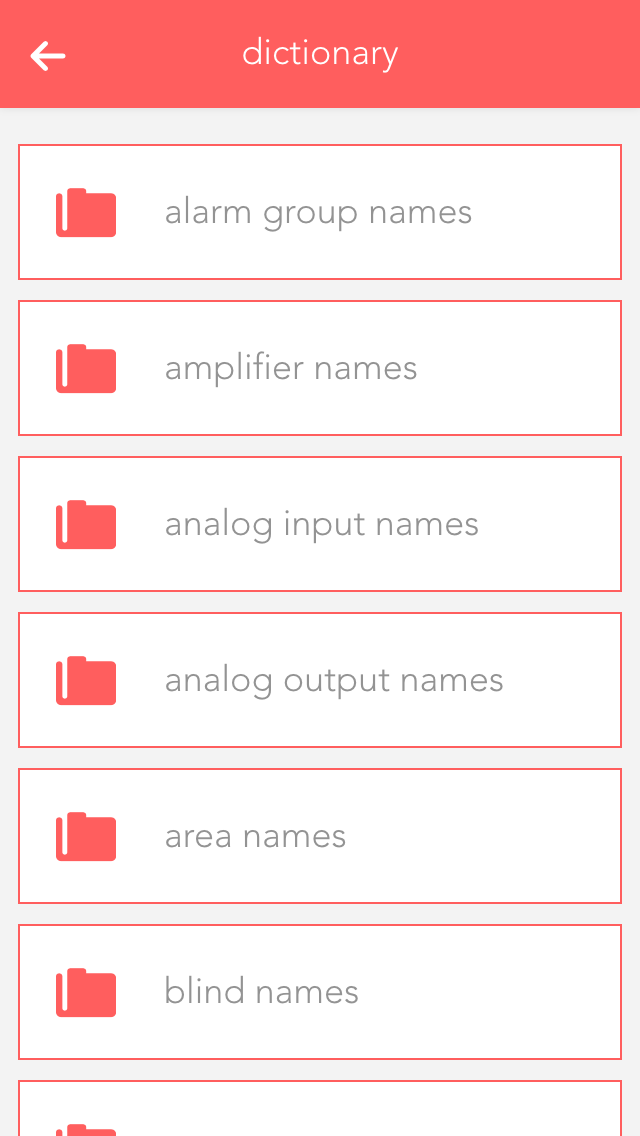
You can edit the pre-defined names in the dictionary. These names will be suggested to you when you wish to name a light, a blind, etc. However, you can even select a different name when naming your elements. The names in the dictionary are only a guide.
“Time” lets you see the current time and date used in your controller (server time), the time zone your controller is in and the time of the device you have used to connect to your evon Smart Home (mobile phone, tablet …).
The time zone lets you allocate the desired time zone to your controller. The item “set time” allows you to set the time in the controller. The button “use client time” allocates the time used by your device (mobile phone, tablet) to the controller. The button “set time manually” lets you set the time and the date for your controller yourself.