Global Settings

Global settings let you define what is responsible in your evon Smart Home for activating wind, rain, frost, dusk states. For example, if you have connected a rain sensor, this is where you would find the settings for your system to display whether it is raining or not. The global settings can be found under “all apps” – “settings”.

Rain

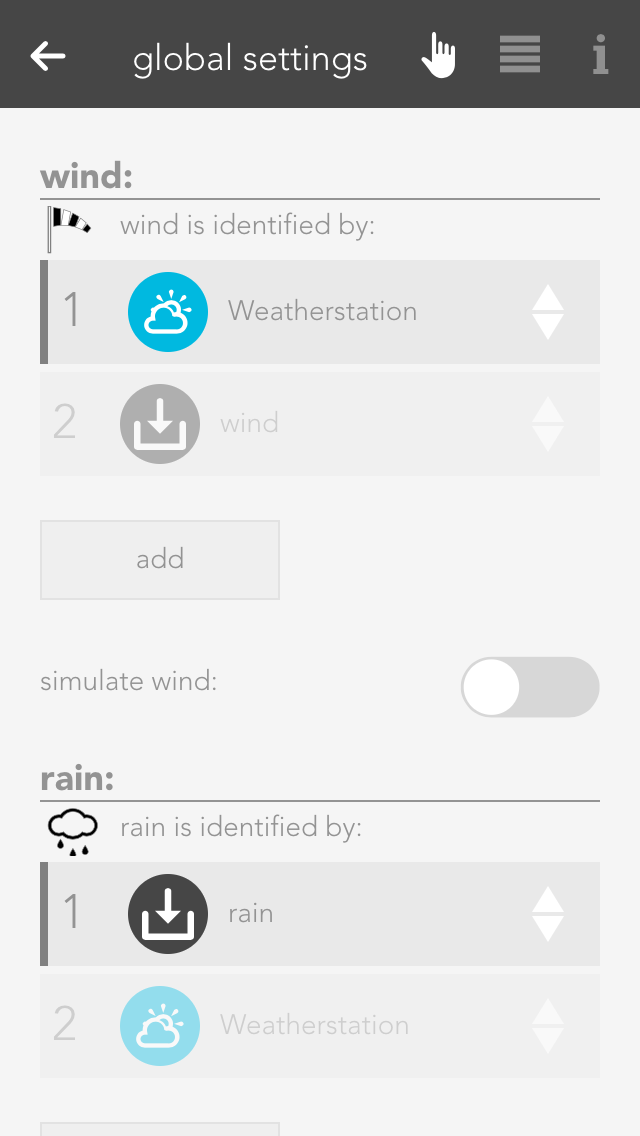
In the “Rain” section, the method used to detect precipitation can be defined. Precipitation can be detected directly via the evon Smart Home weather station or by using any digital signal. In this case, an active signal indicates rain.

Any digital signal can be added using the “Select another value” function.

Twilight

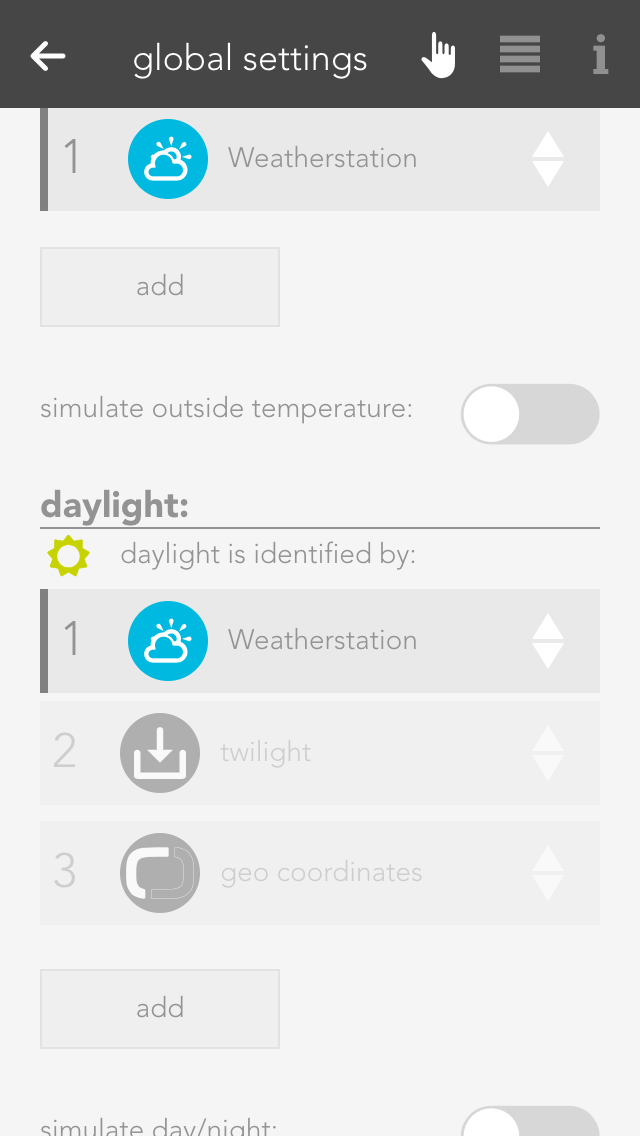
In the “Sunrise/Sunset” section, the method used to determine day and night can be configured. Detection can be based directly on the evon Smart Home weather station, on the geographic coordinates combined with the current time, or on any digital signal. In this case, an active signal indicates night.

The weather station can be connected using the “Select sensor” button.

Any digital signal can be added using the “Select another value” function.

Selecting “Use geographic coordinates” opens a pop-up window in which the current geographic coordinates can be entered. When connected via remote access or the Android app, the location can be detected automatically. The “Is night” signal from the Time app is then linked.

This setting can be used, for example, to close shading elements automatically at dusk.

Wind Alarm

In the “Wind” section, the method used to detect a wind alarm can be defined. Detection can be based directly on the evon Smart Home weather station or on any digital signal. In this case, an active signal indicates a wind alarm.

Any digital signal can be added using the “Select another value” function.

Outdoor Temperature

In the “Outdoor temperature” section, the method used to determine the outdoor temperature can be defined. The temperature value can be provided directly by the evon Smart Home weather station or by a temperature sensor.

The weather station or a temperature sensor can be selected using the “Add” button.

The “Select another value” function can be used to select any numerical value as the outdoor temperature.

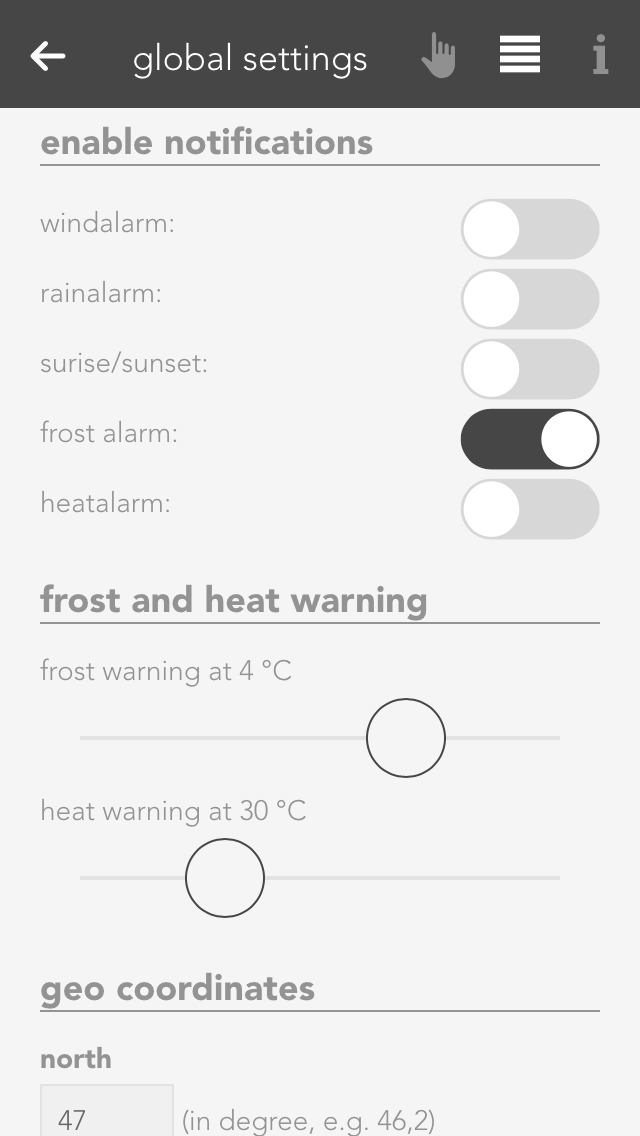
Thresholds for frost and heat warnings can also be defined in the parameter panel. As soon as the outdoor temperature falls below or rises above the respective threshold, a scene can be triggered or a notification can be generated.

Geo Coordinates

The sunrise and sunset times can be calculated using geographic coordinates.

The geographic coordinates can be entered in decimal format. To determine the coordinates, open the desired location in Google Maps at https://www.google.com/maps. Right-click the corresponding position and select “What’s here?”. The geographic coordinates will then be displayed. The first value represents the latitude, and the second value represents the longitude.

The “Get current geographic coordinates” button is only displayed when the application is accessed via a secure HTTPS connection. This usually applies when accessing the application through a browser or the iOS and Android apps. The button is not displayed in local browser environments without HTTPS because location access is unavailable.

To modify the calculated times, the “Adjust sunrise and sunset times” option must be enabled. The sunrise and sunset times can then be offset by a specified number of minutes to occur earlier or later.

Simulation

To test how the system behaves in certain conditions, such as rain, the corresponding state can be simulated. In the “Rain” section, first enable the “Simulate rain” option and then activate “Rain on”.

The same type of simulation is also available for wind, outdoor temperature, and daylight.

After testing, the simulation must be disabled again, for example by turning off the “Simulate rain” option.

Notification

You can define which events for you would like to receive notification of in the parameter panel.