Connecting
In order to be able to control your home via the app, your must first connect to your system. Simply follow these simple steps.

In order to be able to control your home via the app, your must first connect to your system. Simply follow these simple steps.
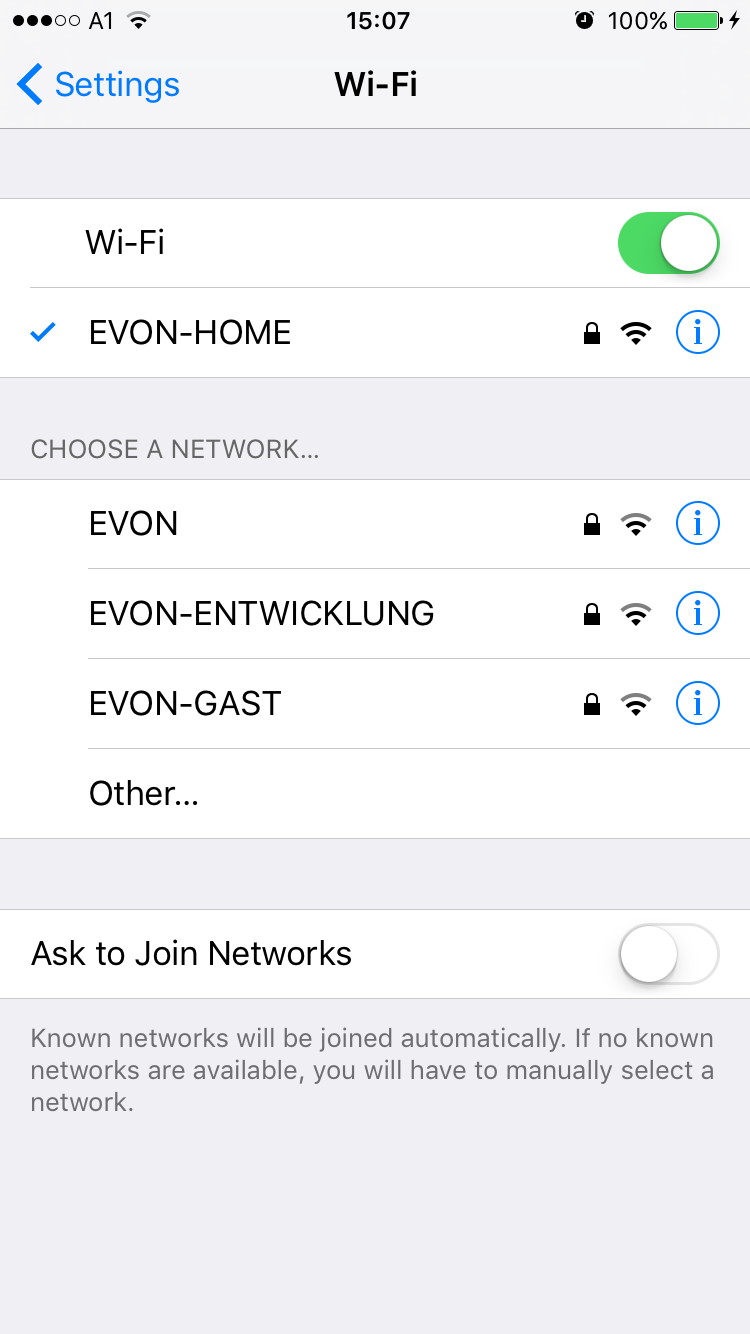
Before opening the Smart Building Automation app, make sure that your device is connected to the same network as the Smart Building Automation controller. Open the Wi-Fi settings on your device and check the currently selected network or connect to the correct one.
When the Smart Building Automation controller is started for the first time and does not receive a valid IP address via DHCP after several attempts, it automatically switches to the following static network configuration:
IP address: 192.168.50.50
Subnet mask: 255.255.0.0
When using a Wi-Fi dongle to connect to the Smart Building Automation system, the controller always uses the IP address 192.168.192.1.
After the app has been successfully installed from the App Store, it can be opened from the home screen. After a short loading time, the start page of the app is displayed.
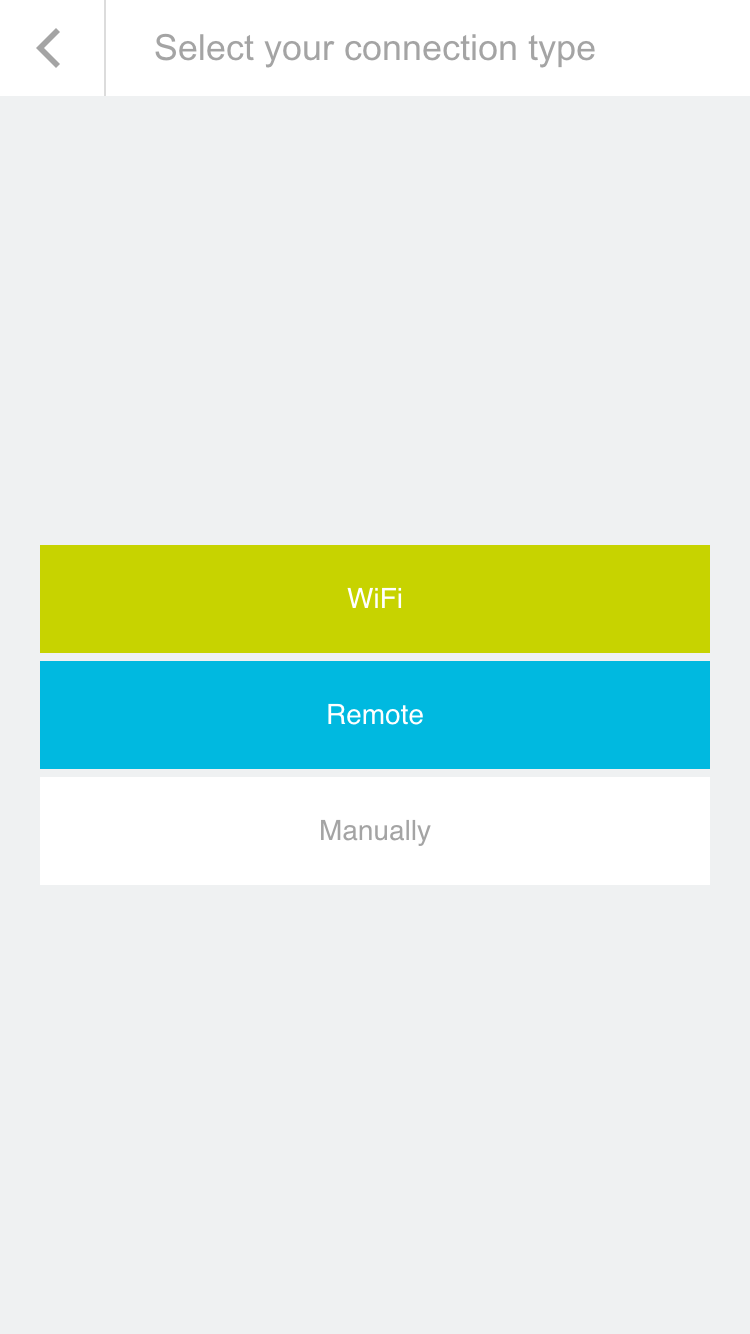
From here, available Smart Building Automation systems can be searched for. The connection can be established either via the local Wi-Fi network or via the internet (e.g. using a mobile network connection via secure HTTPS).
When setting up the Smart Building Automation system for the first time, select "Wi-Fi" to search for the system on the local network.
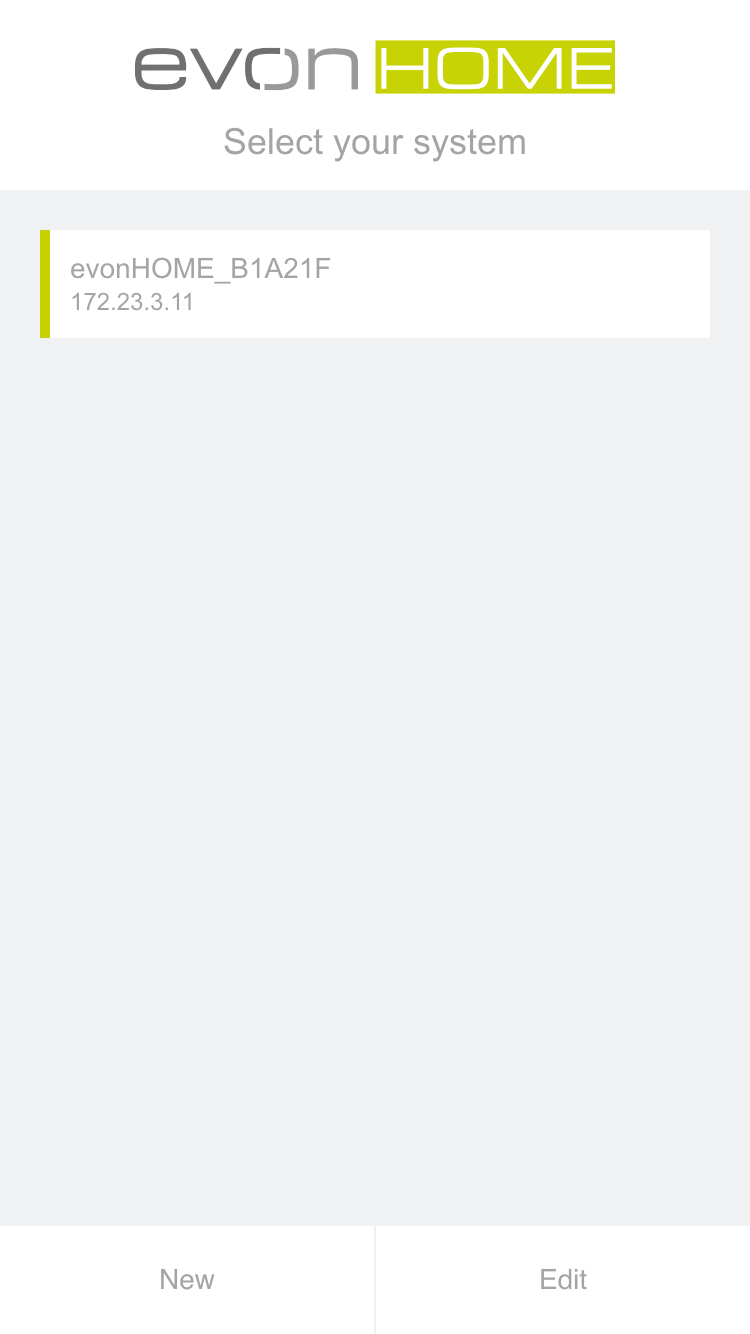
The Smart Building Automation app now searches for available systems in the network. As soon as one or more systems are found, they are displayed together with their assigned IP addresses.
A new system is initially displayed with its default name, consisting of "Smart Building Automation" and a unique identification number (e.g. "Smart Building Automation_1234AB9"). The system name can be changed later.
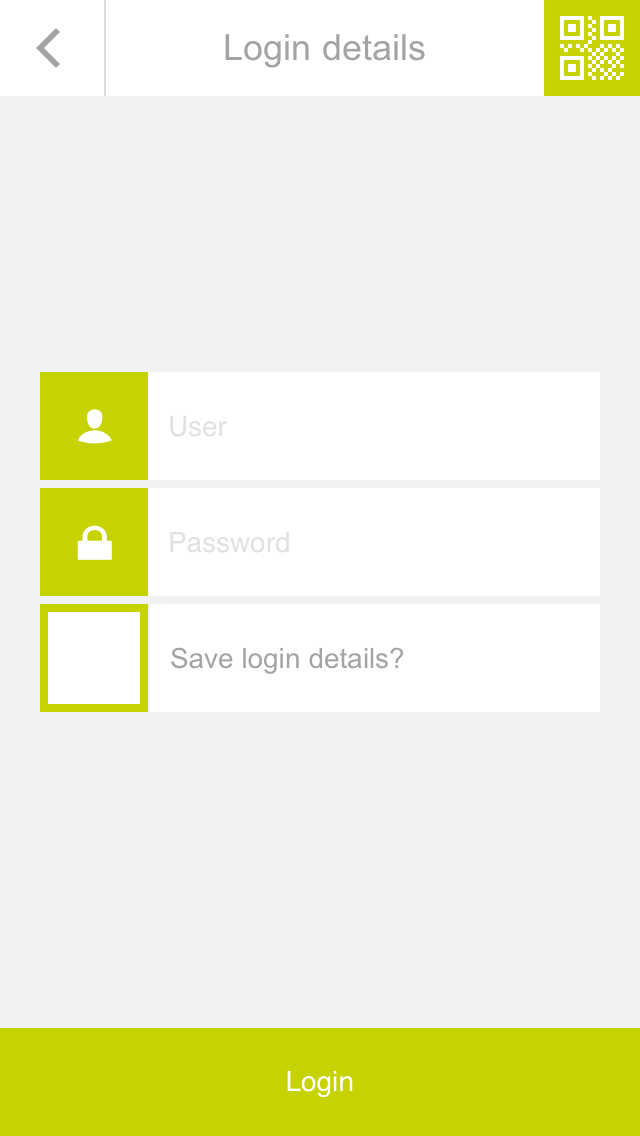
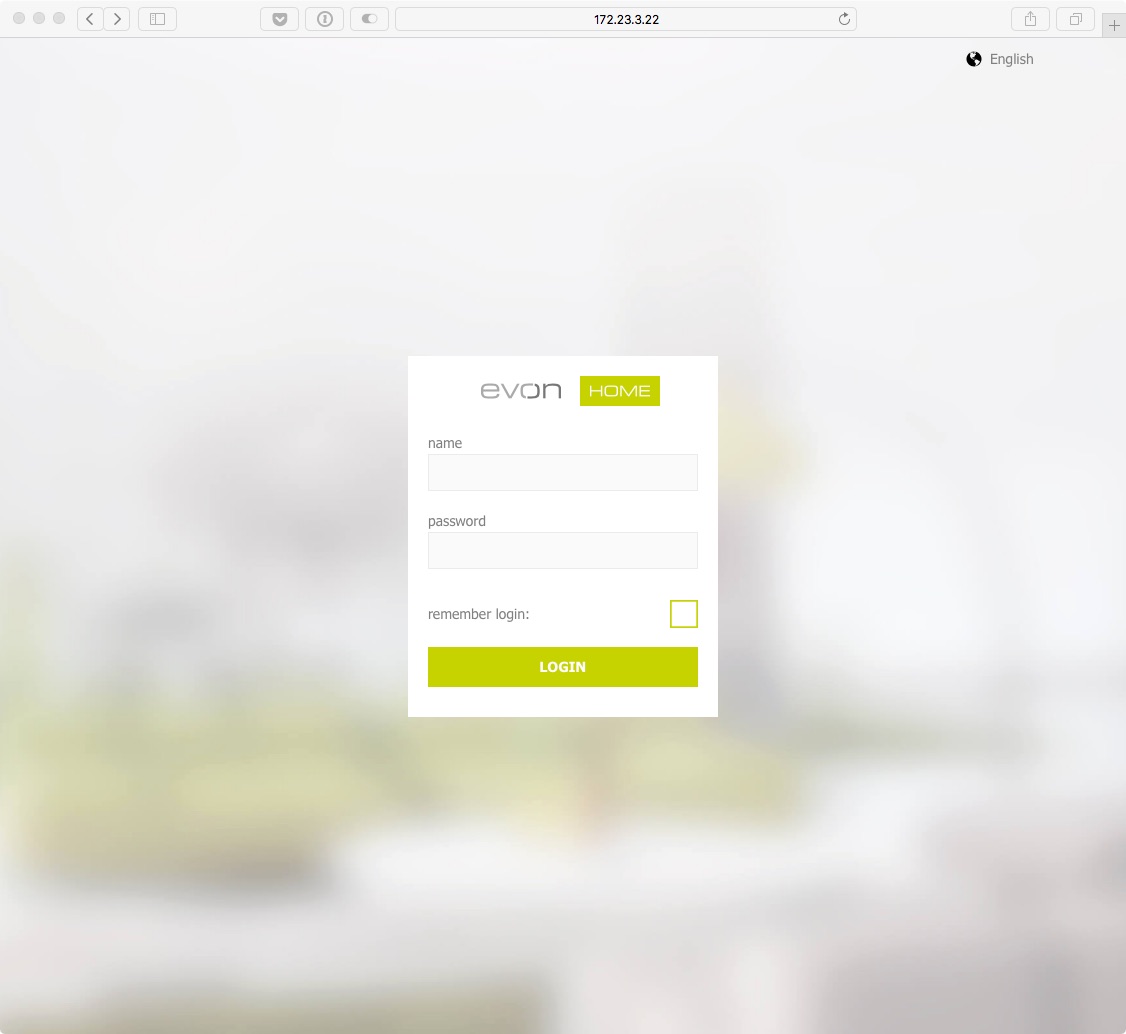
After selecting the Smart Building Automation system, the login page is displayed.
After selecting the Smart Building Automation system, the login page is displayed.
Enter the username and password. Automatic login can also be enabled to use the stored credentials for future logins.
For easier login during the initial setup of the Smart Building Automation system, a QR code can also be used. Select the green button in the upper-right corner of the login screen to use this function.
Point the camera at the QR code provided in the enclosed documentation and position it in the center of the marked area. Once the QR code has been successfully recognized, the corresponding login fields are filled in automatically.
After successful login, the connection to the Smart Building Automation system is established and the system can be operated via the app.
For the initial login, use the username and password or the QR code provided in the enclosed documentation.
In addition to accessing the Smart Building Automation system via the official app, it can also be accessed using any modern browser (e.g. Chrome, Safari, or Edge). The IP address of the system is required and is displayed in the app once the system has been found.
Enter the IP address in the browser's address bar to open the login page. After entering the credentials, the Smart Building Automation system can be operated directly in the browser.
When accessing the Smart Building Automation system via a browser, some device-specific functions of the mobile app may not be available. These include native notifications, which can also be displayed when the app is not currently in use.