Smart Building Automation provides a modern and comprehensive solution for building automation. This section provides support during the planning process to facilitate efficient project implementation. Before exploring the detailed information in the documentation, the following provides a general overview of the system's functionality.
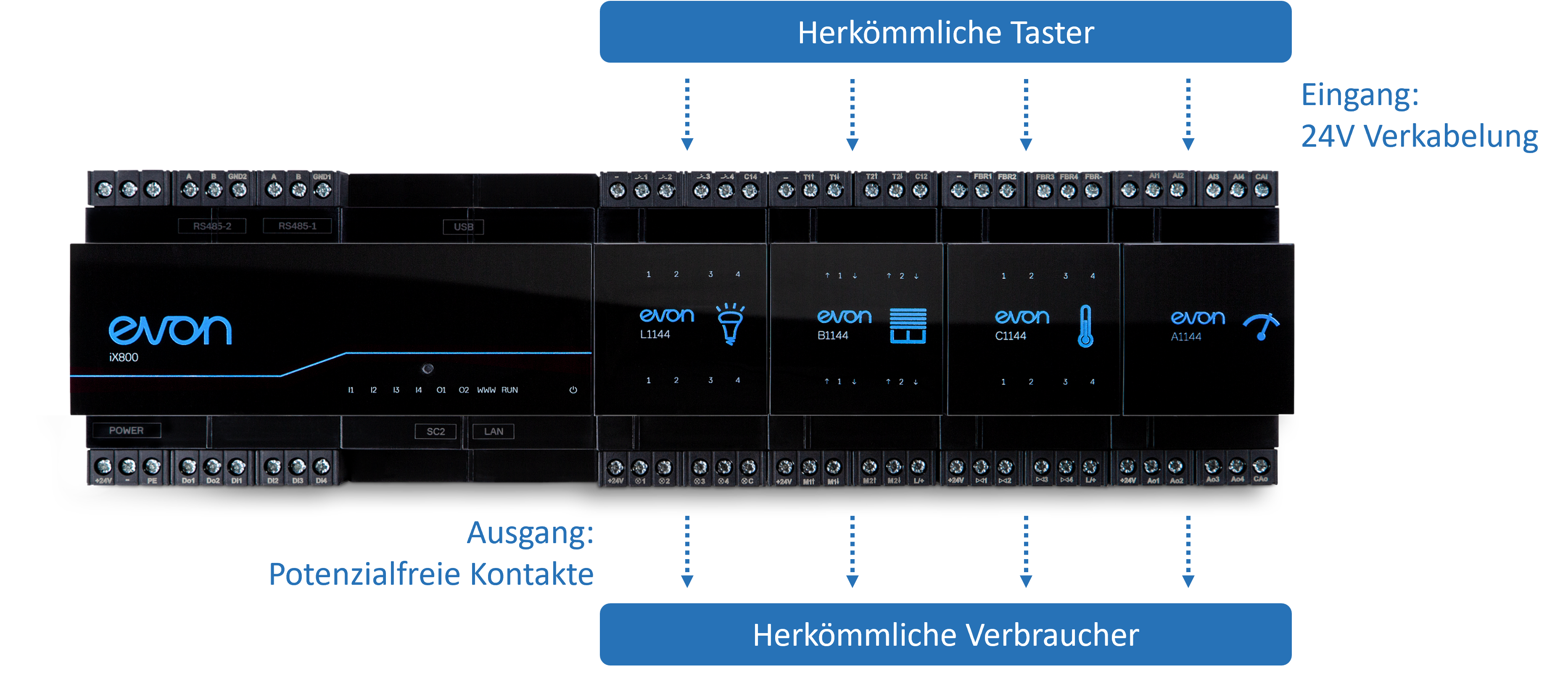
The required Smart Building Automation modules depend on the functions to be implemented, such as lighting or blinds control. Different module types are available for specific applications and functions. The modules provide basic autonomous operation, including central functions such as “All Lights Off”. The CPU module extends the system with the full range of control and configuration options, including access via smartphone, tablet, or PC.
The modules are installed in one or more electrical cabinets. Unlike conventional electrical installations, electrical loads are connected directly to the module outputs, while switches or push-buttons are connected to the corresponding inputs. The switches therefore do not directly switch the 230 V supply to the electrical loads but instead provide control signals to the Smart Building Automation modules.
As conduit and cable installation typically takes place before the electrical cabinet is assembled and the system is commissioned, detailed planning of the wiring for electrical loads, switches, and push-buttons is essential. The first part of this documentation therefore describes the necessary planning steps.
Hardwarekonzept
Abhängig von den Anforderungen an die Gebäudeautomation kommen unterschiedliche Module wie Lichtmodule, Jalousiemodule usw. zum Einsatz. Die zentrale Basis bildet dabei der Smart Building Automation Controller.
Die Module werden in einem oder mehreren Schaltschränken installiert und zentral verkabelt. Dabei gilt:
An den Ausgängen der Module werden die Verbraucher angeschlossen.
An den Eingängen werden Taster, Bewegungsmelder, Raumfühler usw. angeschlossen.
Da die Leerverrohrung und das Einziehen der Kabel häufig nicht zeitgleich mit dem Aufbau des Schaltschranks und der Inbetriebnahme der Steuerung erfolgen, ist eine sorgfältige Planung der Verkabelung für Verbraucher und Taster besonders wichtig.
Dieser Aufbau aus einzelnen Funktionsmodulen und einem zentralen Controller ist patentiert und bietet drei wesentliche Vorteile:
Einfach:
Die Konfiguration erfolgt vollständig ohne Programmieraufwand. Nach der Installation stehen die grundlegenden Funktionen des Systems sofort zur Verfügung.
Sicher:
Durch die integrierte Autarkfunktion bleiben wichtige Basisfunktionen wie das Ein- und Ausschalten von Licht sowie das Hoch- und Herunterfahren von Jalousien auch bei einem Systemausfall weiterhin verfügbar.
Unabhängig:
Smart Building Automation ist ein offenes System und ermöglicht die Einbindung herstellerunabhängiger Hardwarekomponenten.
Eine Übersicht aller Produkte ist auf der Website oder im Partnerportal verfügbar.
Interface
The visualization provides access to all system functions and enables the configuration of the required settings. The following section describes the basic concepts of operation and configuration.
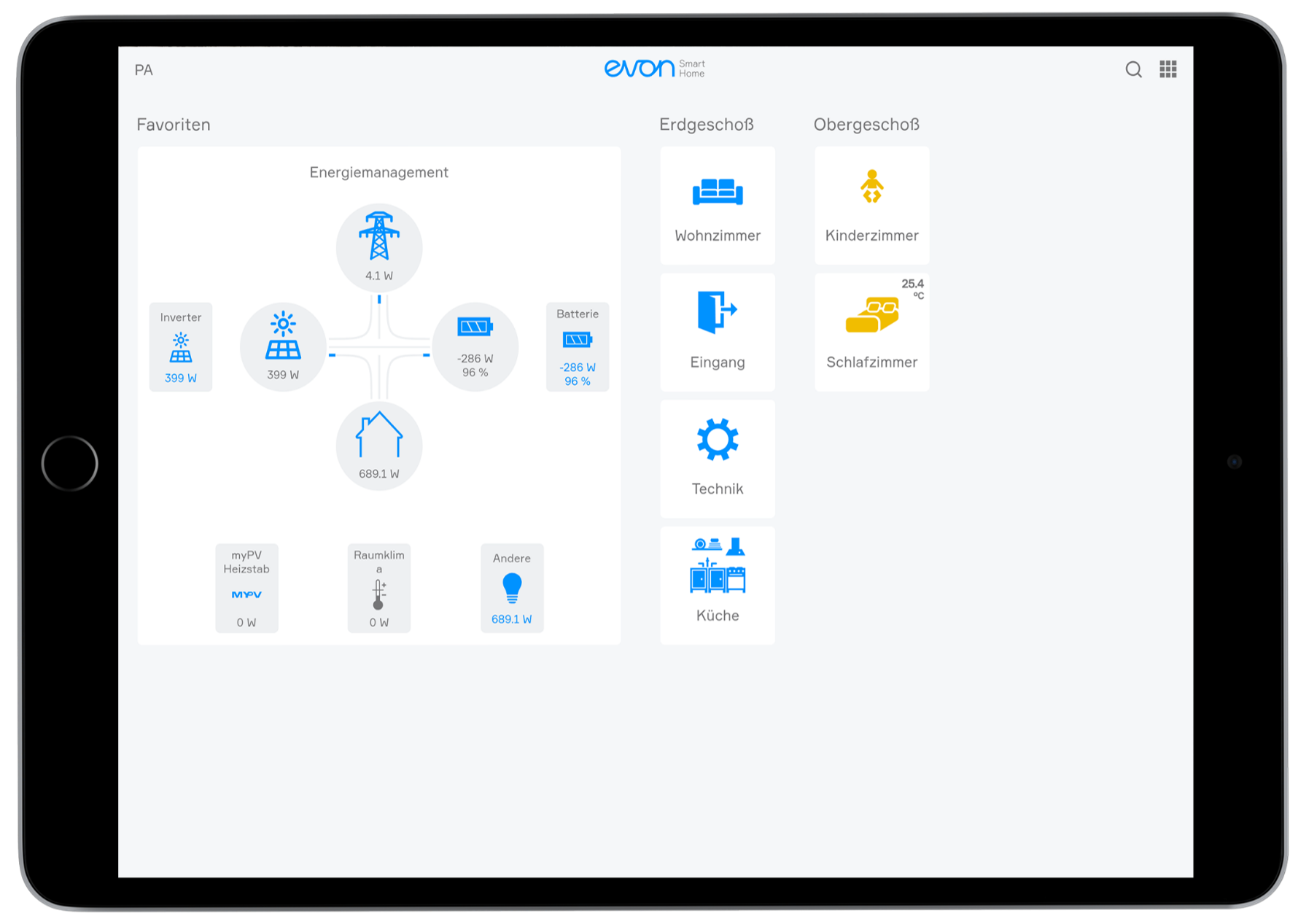
Startbildschirm
Die zwei wesentlichen Bestandteile des Startbildschirms sind:
Favoritenbereich: Dieser kann individuell für jeden Benutzer gestaltet werden. Unterschiedlichste Funktionen oder Dashboards können angeheftet werden, um schnellen Zugriff zu ermöglichen.
Bereiche und Räume: Diese werden während der Inbetriebnahme definiert. Jeder Bereich bzw. Raum enthält alle Funktionen, die ihm zugeordnet sind.
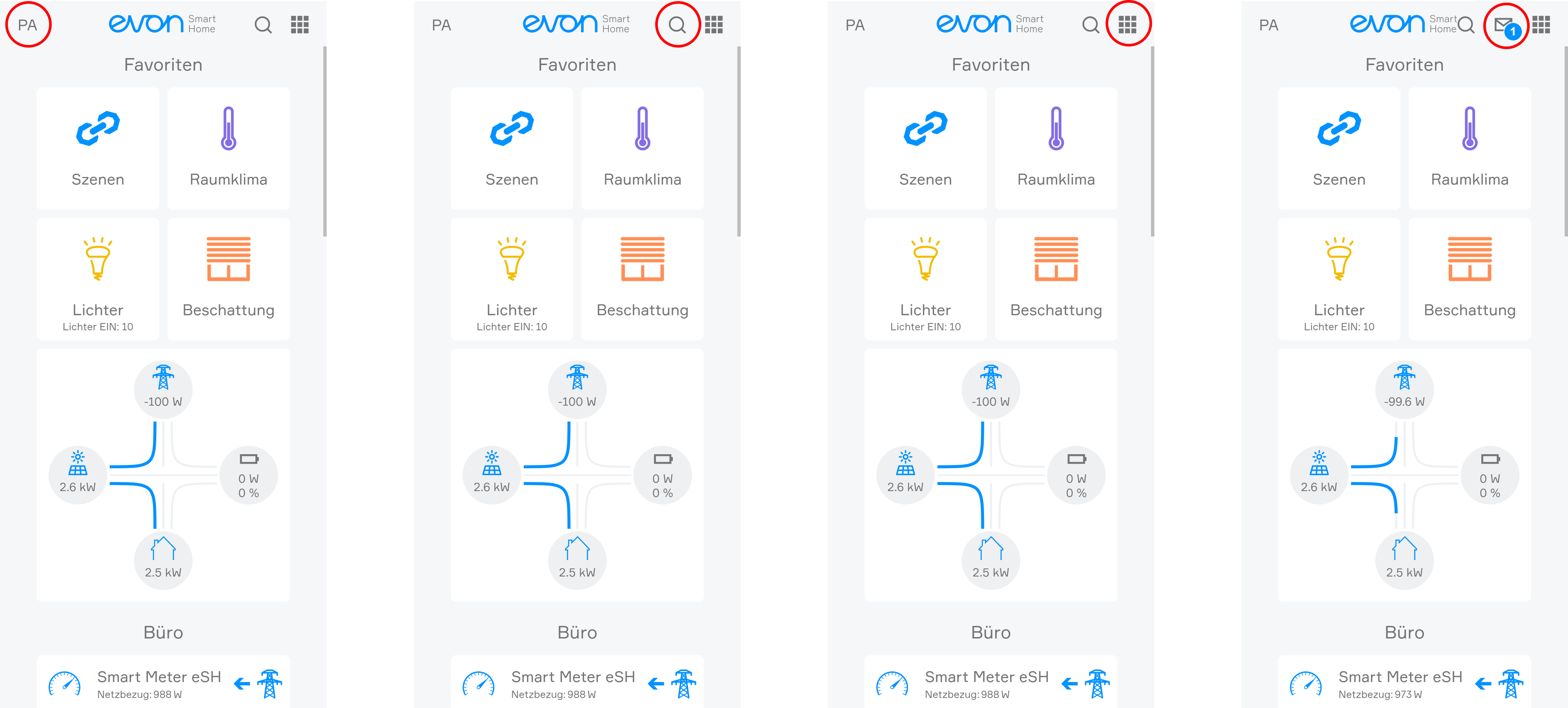
Darüber hinaus bietet der Startbildschirm direkten Zugang zu den Funktionen: Benutzer - Suche - Alle Apps - Meldungen
All Apps
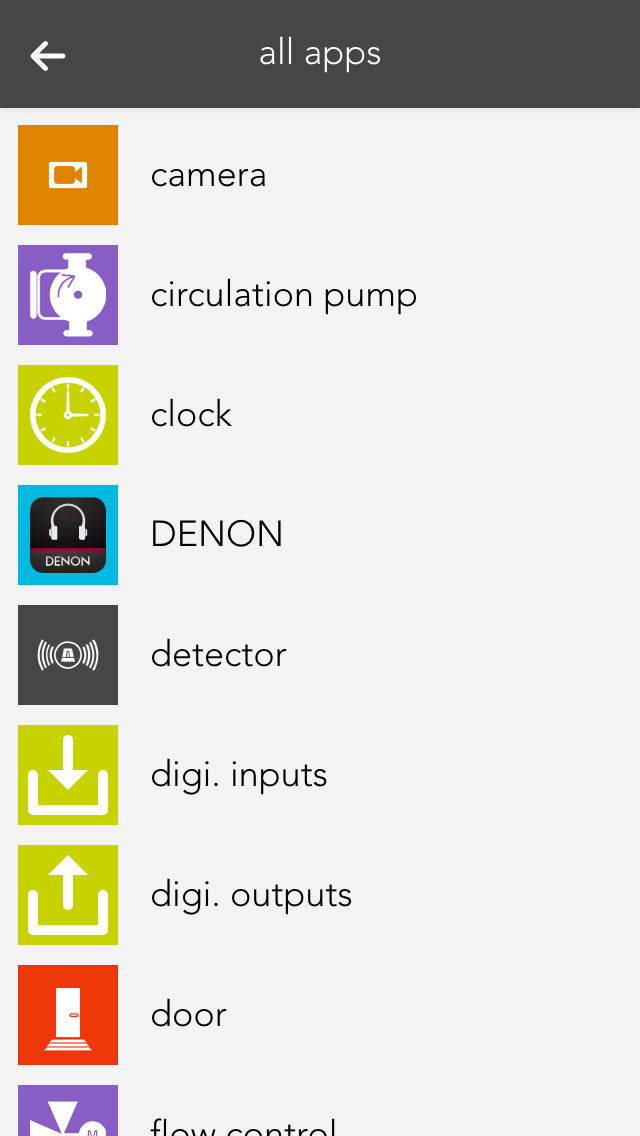
A single click on the symbol (top right) opens all apps. This shows you all available apps. If you don’t want “all apps” open all the time, you can put frequently used apps into your favourites, as follows.
Usage
Every app contains different views and representations that are used for opening, operating or changing settings.
App
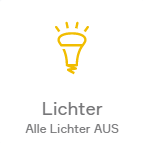
This is the basic representation of every app in the system. A single click/press on this display opens the app view and its functions can be used and/or changed.
App Interface
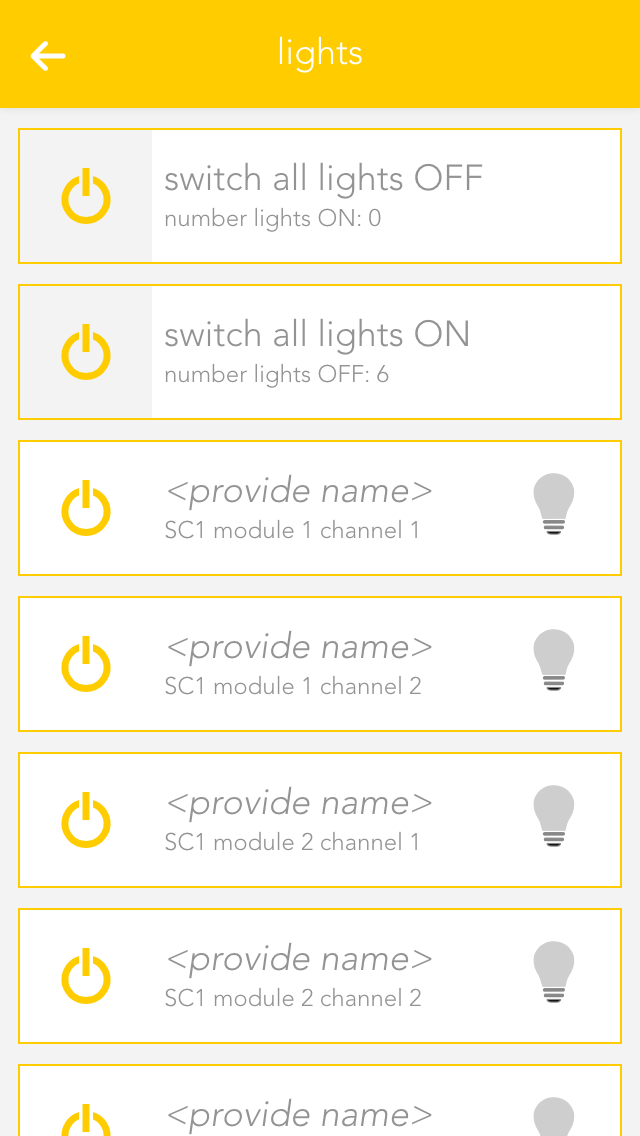
As long as you have an app open, you can also open its view. This shows you all content and functions that are available to you. In the case of the light app, the items displayed include all connected lights and the group functions.
Group Functions
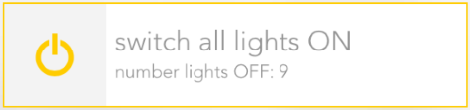
The group function can vary from app to app, but is mainly used to create new elements or to operate several available elements. Taking the app “lights” as an example, it can be used to switch all available lights on or off. In other cases, such as “user”, you can add new users.
Elements
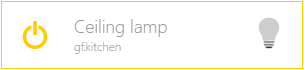
This display represents a single element in the app. In the case of “lights” every single one of your connected lights is displayed like this. The display is divided into several individual sections, each one serving a different purpose. The area on the left contains operating elements in the form of one or more buttons that you can use to control the element (e.g. light on/off). Then there is a text area containing information such as the name and the allocated area. On the right, many apps have a status display showing you the current status of the element. Fo lights, you can see whether the light is on or off, or (if the energy saving mode is active) when the light will be switched off.
Clicking /pressing the text area of an element opens the settings screen where you can change the app name, allocated areas and functions as you wish.
Settings
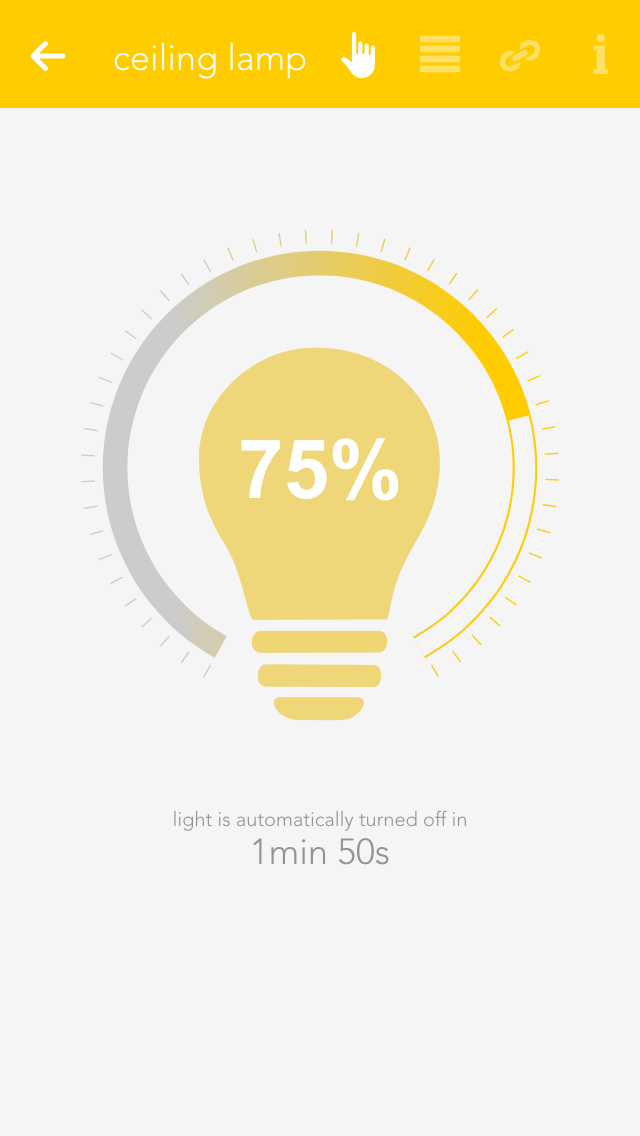
This display offers you various information and settings possibilities for the selected element and is divided into several sections. On the top right are small buttons that let you jump into other areas. The first section contains the most important operating elements via which you can operate the selected element and, depending on the app, various items of basic information.
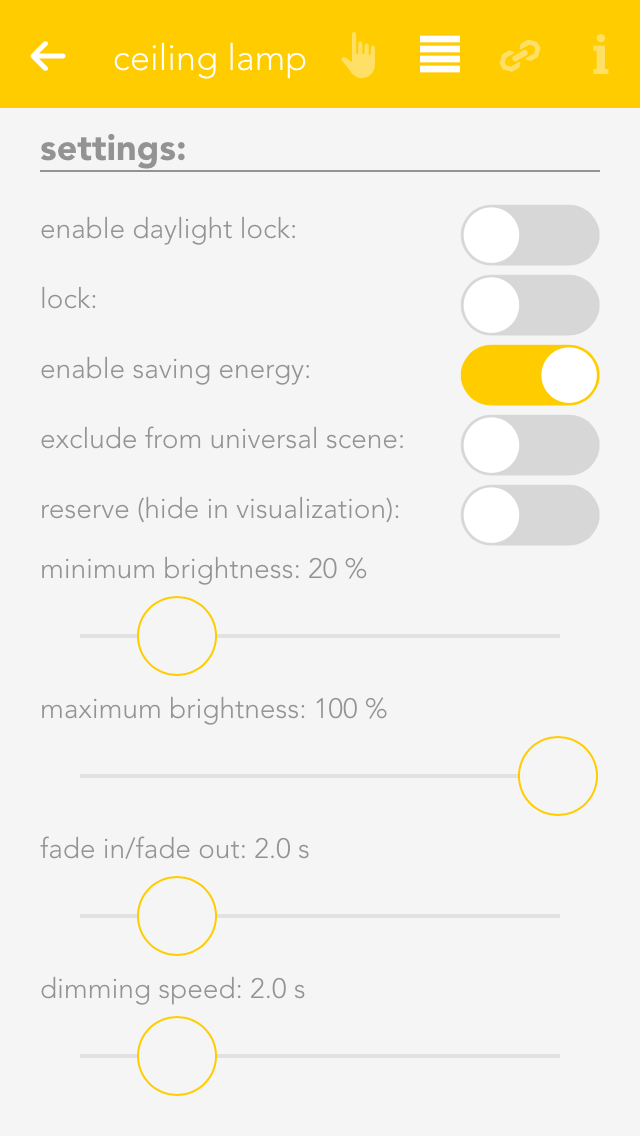
The second section contains the settings that you can change for that element. These allow you to change the behaviour of individual element to suit your needs.
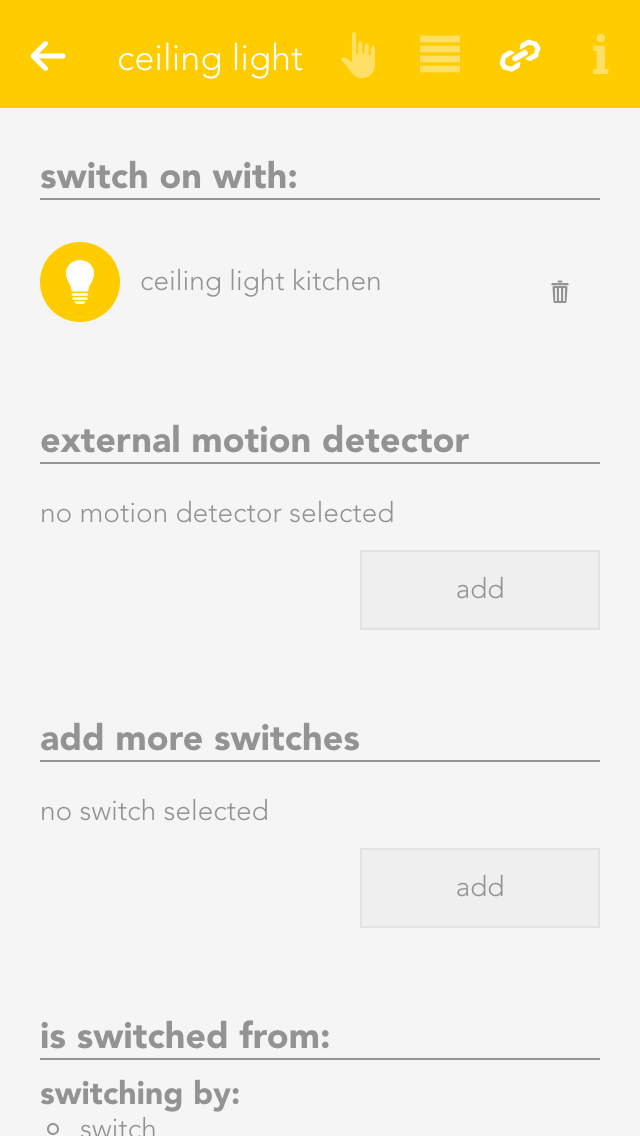
This section shows you al the links for your element. This gives you an overview, should you desire it, of which switches or functions affect the element. You can also link the element with other elements, depending on the app. For example, in the app “lights”, you have the possibility to link a light with a motion sensor.
In the settings view, most of the apps have a button on the top right allowing you to access the official documentation.
Please note that the settings possibilities vary from app to app and therefore not all sections are available for all apps.
Element selektieren
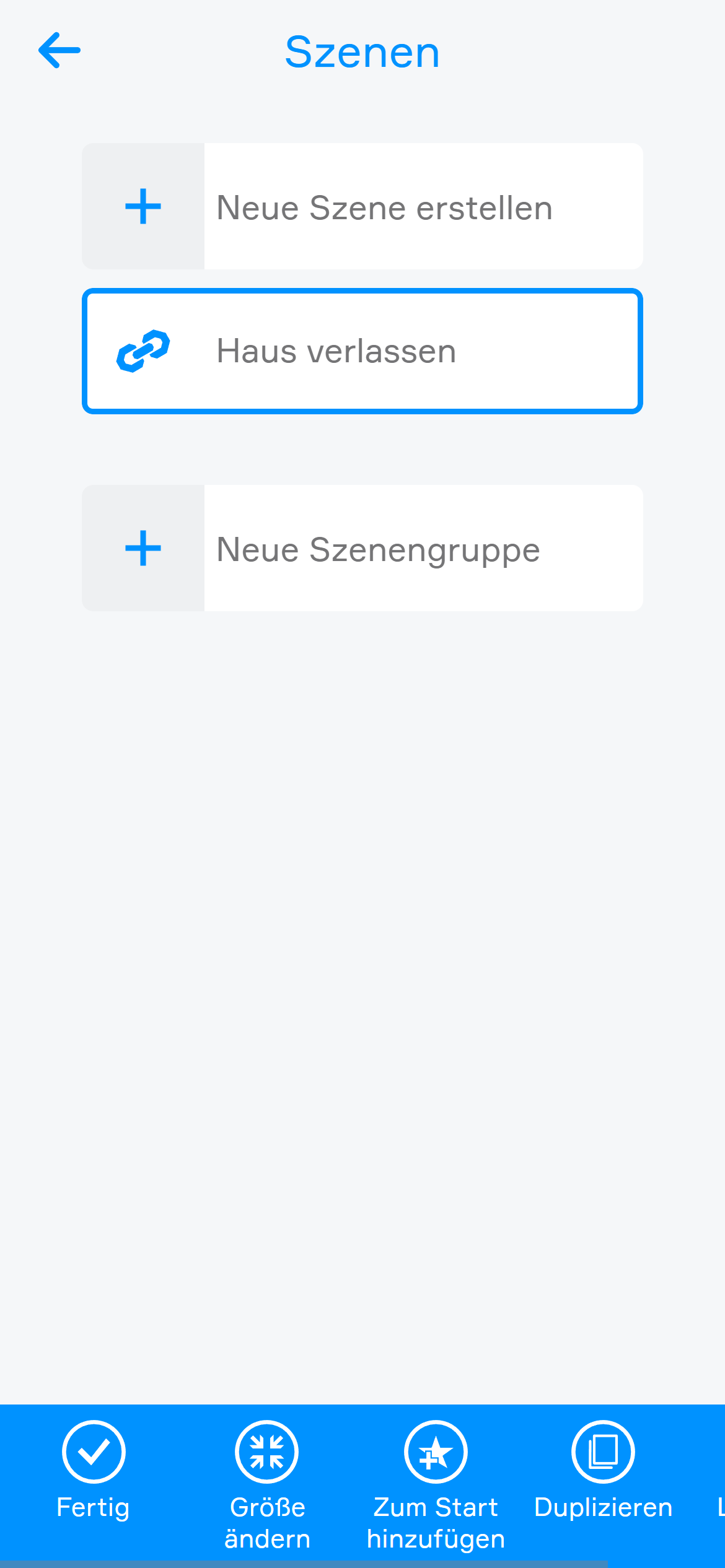
Durch langes Klicken auf ein Element wird dieses ausgewählt und es können je nach Element-Typ folgende Funktionen verfügbar sein:
Größe ändern: Passt die Größe des Element-Symbols an.
Zum Start hinzufügen: Das Element wird am Startbildschirm im Favoritenbereich angeheftet.
Duplizieren: Das Element wird innerhalb des Bereichs dupliziert.