Counter

This app is used when you connect a counter to a digital input. With it's help you can react to the signals send form the counter unit and evaluate them. For example, you can record a power consumption in kW, set various value limits and react to them later in scenes.
The Counter ist located under “all apps” – “Counter”.

The minimum pulse length for a counter connected to a digital module is 100ms. For faster counters, please use the input located on the cpu module.
Create

To use a counter with the corresponding app, it must first be connected to a digital input of the Smart Building Automation system. A digital input on the controller (DI1–DI4) or on a Schrack Smart Building Automation digital module, such as the "D1180" or "D1344", can be used for this purpose. Then follow these steps:

If no counter has been created in the Smart Building Automation system yet, a digital input must first be configured accordingly.

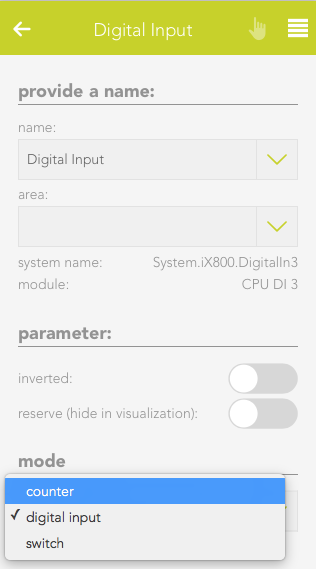
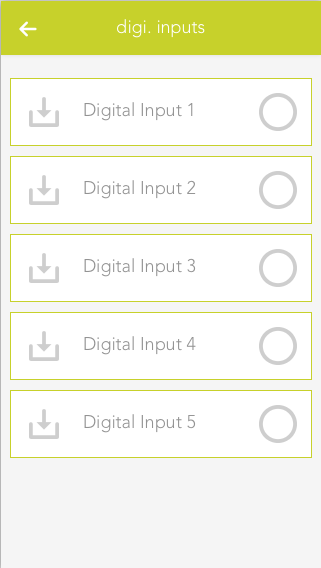
Navigate to the digital inputs under "All Apps" – "Digital Inputs", select the desired input, and open the ParameterPanel.

Under "Mode", select "Counter". The digital input is then configured as a counter and displayed in the "Counter" app.

Configuration

Every Counter allow you to change certain settings, which determine what will be counted (e.g. kWh) and what limits exists.

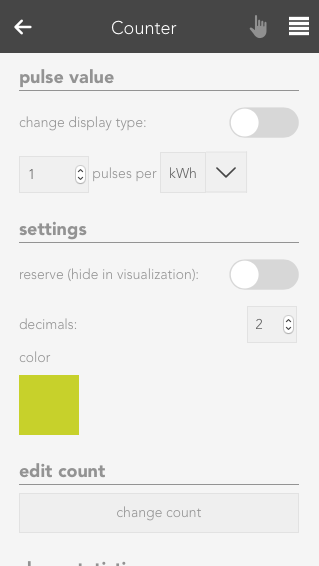
Pulse value
Choose the significance of the impulse which gets received by the counter. The necessary settings for this are usually listed on the counter device.

Settings
Inverted
If this option is activated, only falling edges will be counted instead of rising edges.

Reserve
Hides this counter from the visualization.

Color
Changes the color of the visible graphs.

Edit count
Here, you can set the current count to a desired value

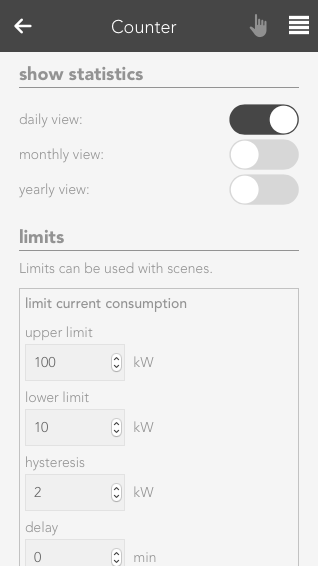
Show statistics
Choose the graph/chart, which will be displayed in the OperatorPanel.

Limits
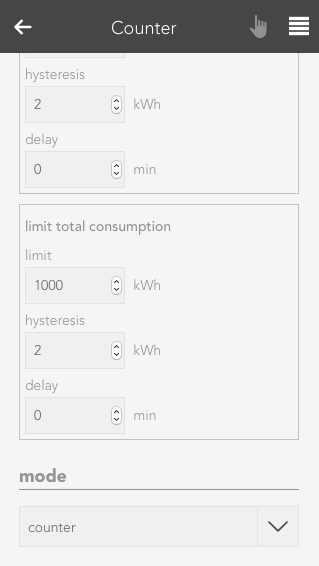
You can choose various limits (and according delays) here, which you can then link in scenes. Linkable values are: 'current consumption - upper limit', 'current consumption - lower limit' and 'daily consumption - limit'.

Mode
With this setting you can convert/revert a counter to a digital input or switch

Operation

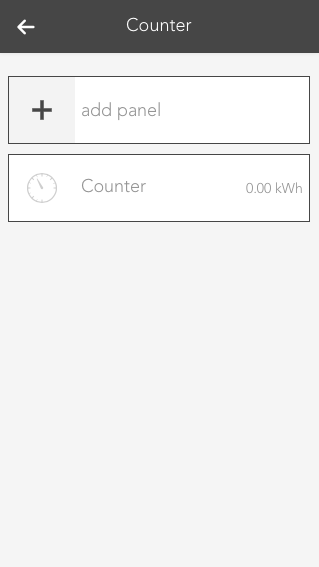
Once a Counter has been created, you can add additional visual panels. Those grant you an overview about the evaluated values.

To add such a panel, use the button "add panel".

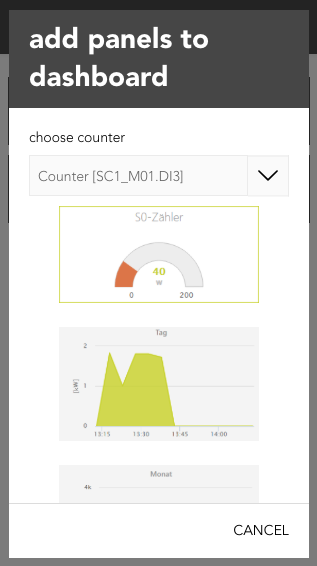
In the popup which will appear, you can choose between several graphs/charts. To do so, you have to select the corresponding Counter under 'choose counter' and then one of the desired charts.

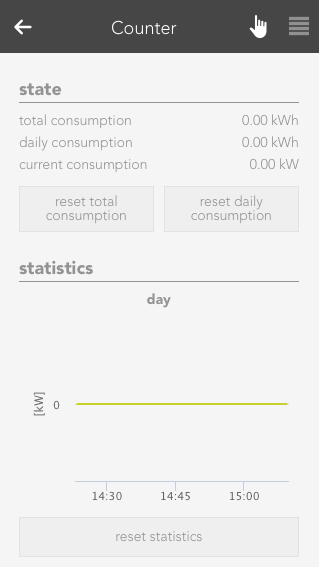
The OperatorPanel gives you an overview about the measured values. The following sections exist:

Status
Gives you information about the total, daily and current consumption. In addition, you can also reset the counter.

Statistic
The graphs/charts which you can activate in the ParamterPanel will be shown here. The statistics which are shown here can also be reset with the corresponding button.

Szenen

Der Zähler bietet folgende Auslöser für Szenen (wenn ...):

  • Grenzwert Gesamtverbrauch überschritten: Der Grenzwerte für den Gesamtverbrauch wurde überschritten
  • Grenzwert Tagesverbrauch überschritten: Der Grenzwert für den Tagesverbrauch wurde überschritten
  • Oberer Grenzwert aktueller Verbrauch überschritten: Der obere Grenzwert für den aktuellen Verbrauch wurde überschritten
  • Unterer Grenzwert aktueller Verbrauch unterschritten: Der untere Grenzwert für den aktuellen Verbrauch wurde unterschritten

Der Zähler bietet folgende Funktionen für Szenen (dann ...):

  • Gesamtverbrauch zurücksetzen: Der Gesamtverbrauchszähler wird zurückgesetzt
  • Tagesverbrauch zurücksetzen: Der Tagesverbrauch wird zurückgesetzt