Sonos
The app “Sonos” lets you integrate your Sonos loudspeakers into your system.

The Sonos app is located under “all apps” – “Sonos”.

The app “Sonos” lets you integrate your Sonos loudspeakers into your system.
The Sonos app is located under “all apps” – “Sonos”.
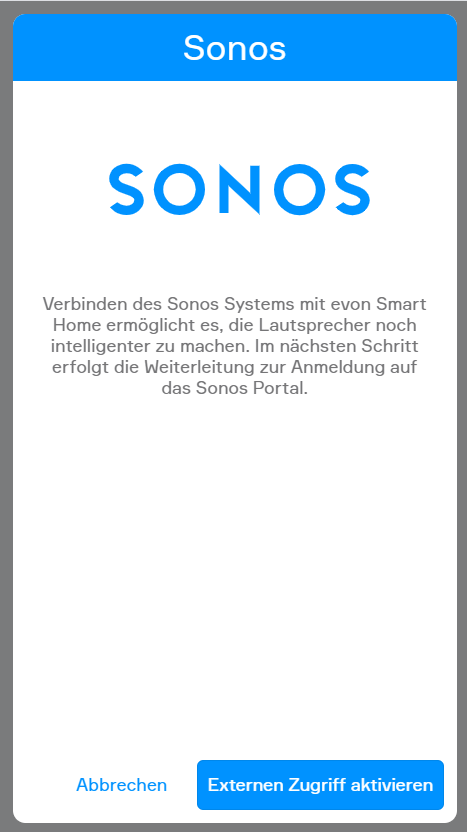
Durch Klick auf „Anmelden“ wird ein Wizard gestartet.
Falls der externe Zugriff nicht aktiviert ist, kann er im angezeigten Wizard durch einen Klick auf Externen Zugriff aktivieren aktiviert werden. Dies ist für den nächsten Schritt erforderlich.
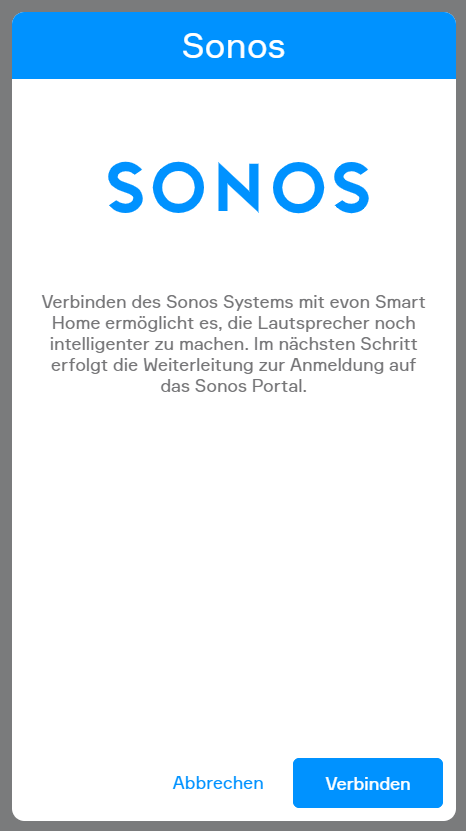
Ist der externe Zugriff bereits aktiviert oder wurde er aktiviert, folgt durch einen Klick auf Verbinden die Weiterleitung zum Sonos-Portal . Sollte der externe Zugriff nur für die Anmeldung aktiviert worden sein, kann er nach der Anmeldung wieder deaktiviert werden.
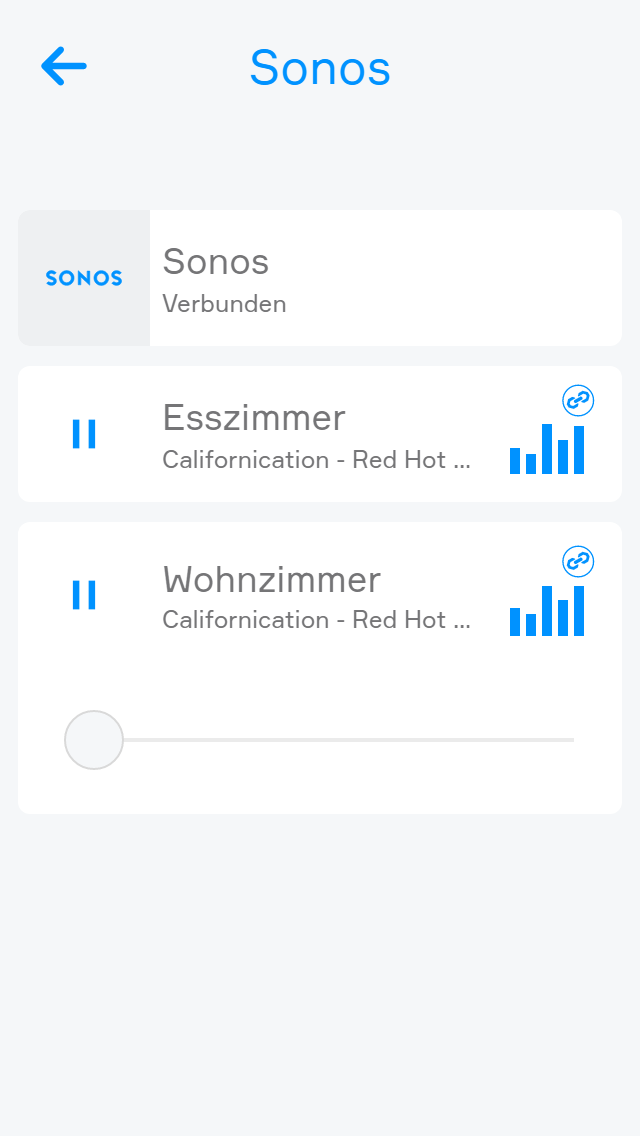
Danach erscheinen die verknüpften Lautsprecher. Diese können auch unter „Alle Apps“ > „Sonos“ gefunden werden.
ACHTUNG! Zum Verbinden mit Sonos muss der externe Zugriff aktiviert sein („Einstellungen“ >(„Externer Zugriff“). Dieser wird nur einmalig während der Anmeldung benötigt und kann danach gegebenenfalls wieder deaktiviert werden.
Before Sonos speakers can be integrated into the Smart Building Automation system, they must first be set up using the official Sonos software available here.
Open the Sonos software and start "Sonos setup". Select "Next" and then "Set up new system". Select how the speakers should be connected and follow the remaining setup steps.
Once the setup is complete, the Sonos speakers can be integrated into the Smart Building Automation system. To do this, select "Add new Sonos" in the "Sonos" app. A window opens and displays all available Sonos speakers. Select the Sonos speaker to be added.
Playback can be started or paused using the play and pause symbols in the ObjectPanel or OperatorPanel. The volume can be adjusted using the "+" and "-" buttons in the ParameterPanel or via the slider.
"Favourites" displays the programs and music stored as favourites in Sonos. To add programs or music to the favourites, use the official Sonos software.
A program or music title can also be stored as a favourite using the heart symbol on the right-hand side of the corresponding entry in the OperatorPanel.
You can use the Sonos with a scene. You have several possibilities.
The “IF” can have the following triggers:
Pause
The scene is invoked when the Sonos is paused.
Play
The scene is invoked when the Sonos play button is pressed.
The “THEN” can have the following actions:
Switch off
The Sonos is switched off when the scene is invoked.
Switch on
The Sonos is switched on when the scene is invoked.
Fade-in
The Sonos begins to play with the “start” volume and increase the volume up to the specified target volume. The ramp-up time defines how long this takes.
Fade-out
The Sonos lowers the volume until it is 0. The ramp-down time defines how long this takes.
Play favourite
The programme or title selected as favourite is played when the scene is invoked.
The maximum volume can be adjusted in the Sonos parameter panel.