
Home Screen

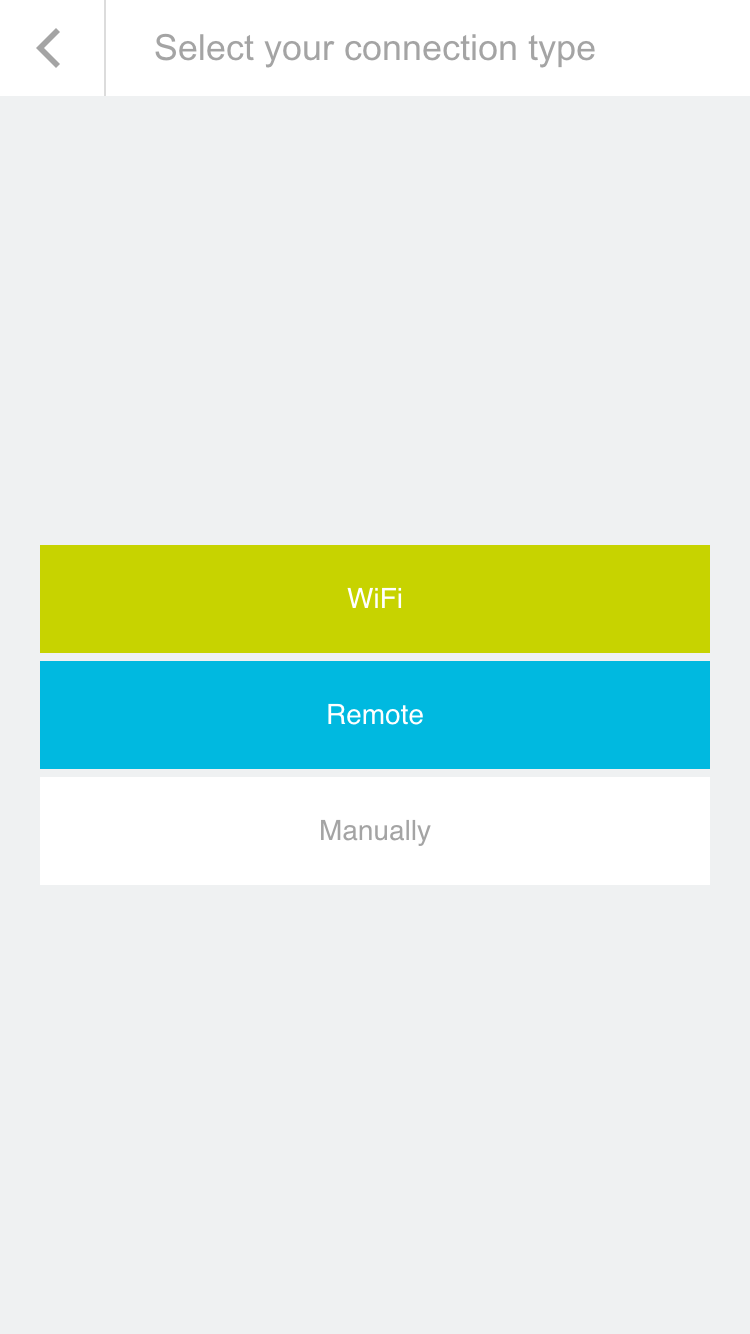
After the app has been successfully installed from the App Store, it can be opened from the home screen. After a short loading time, the start page of the app is displayed.

From here, available Smart Building Automation systems can be searched for. The connection can be established either via the local Wi-Fi network or via the internet (e.g. using a mobile network connection via secure HTTPS).

When setting up the Smart Building Automation system for the first time, select "Wi-Fi" to search for the system on the local network.
Login

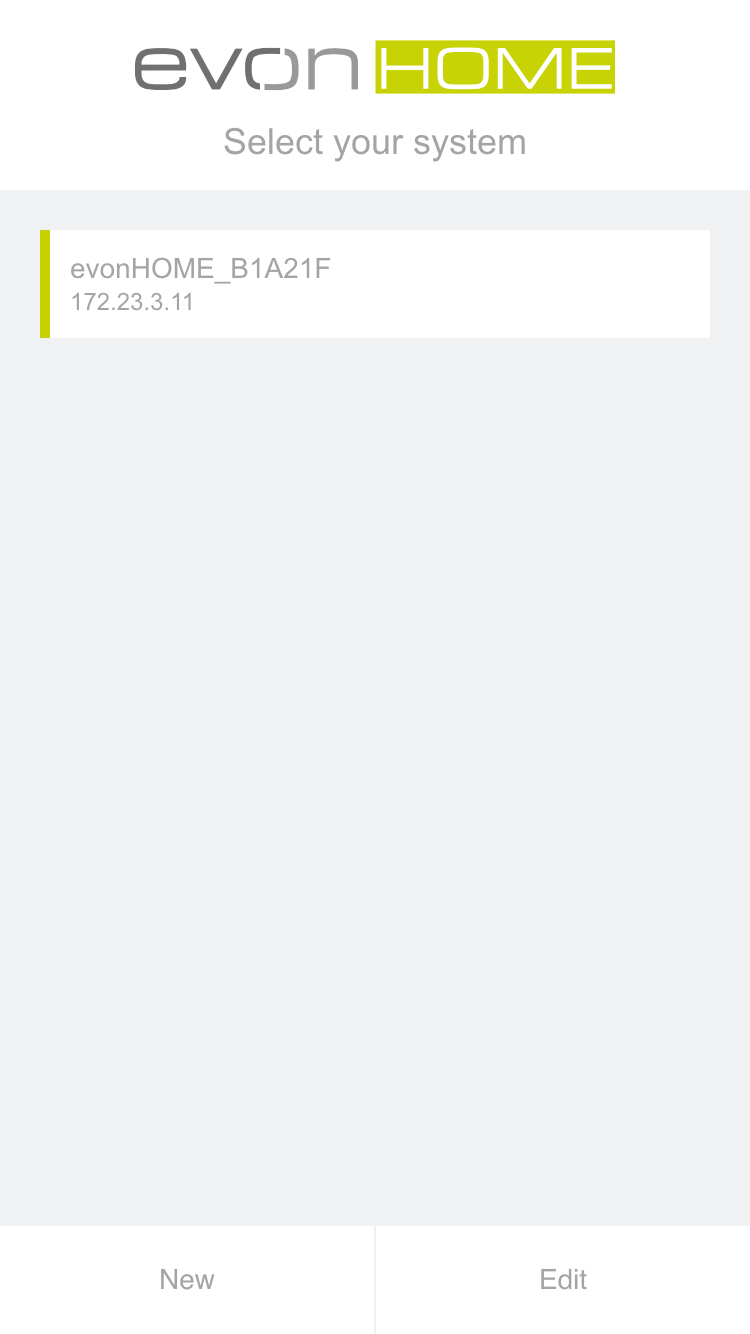
After selecting the Smart Building Automation system, the login page is displayed.

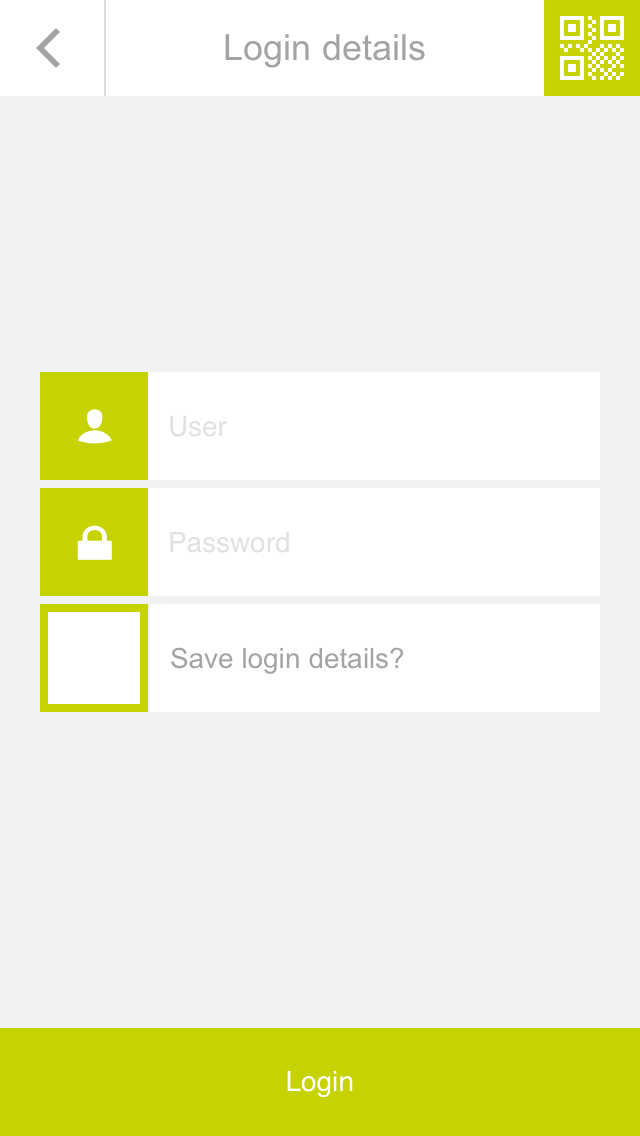
Enter the username and password. Automatic login can also be enabled to use the stored credentials for future logins.

For easier login during the initial setup of the Smart Building Automation system, a QR code can also be used. Select the green button in the upper-right corner of the login screen to use this function.

Point the camera at the QR code provided in the enclosed documentation and position it in the center of the marked area. Once the QR code has been successfully recognized, the corresponding login fields are filled in automatically.

After successful login, the connection to the Smart Building Automation system is established and the system can be operated via the app.

For the initial login, use the username and password or the QR code provided in the enclosed documentation.