Philips Hue
The Philips Hue App makes it possible to integrate Philips Hue lights into the Smart Building Automation system.

"Philips Hue" is located under "all apps" – "settings" - "Philips Hue".

The Philips Hue App makes it possible to integrate Philips Hue lights into the Smart Building Automation system.
"Philips Hue" is located under "all apps" – "settings" - "Philips Hue".
Before Philips Hue lights can be used in the Smart Building Automation system, the Philips Hue Bridge must first be connected. Make sure the Bridge is on the same network as the system, then follow these steps.
Navigate to "All Apps" - "Settings" - "Philips Hue".
All Philips Hue Bridges connected to the system are listed here. To add a new Bridge, use the "Add new bridge" panel.
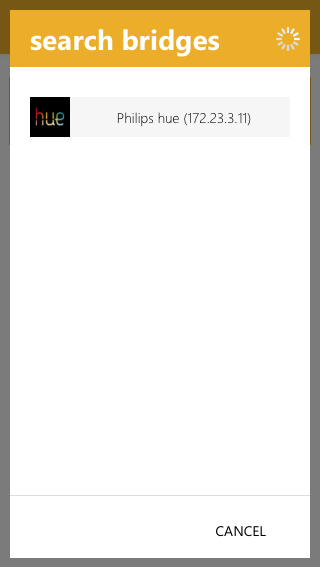
The system now searches for all available Philips Hue Bridges within the local network and displays them in a popup.
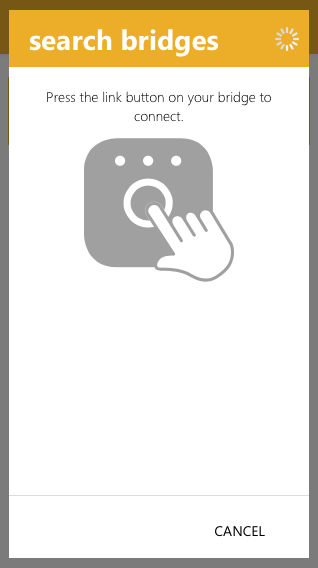
Select the Philips Hue Bridge to be connected to the system. Then press the link button on the Philips Hue Bridge to confirm the connection.
Once the connection has been established, a confirmation message is displayed. The popup can then be closed.
The Philips Hue Bridge is now connected to the Smart Building Automation system.
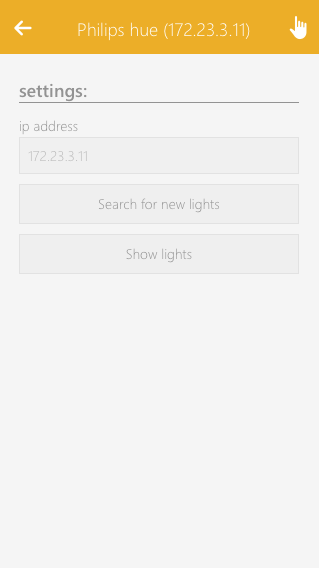
All Philips Hue devices linked to the Bridge are added to the system. If the Philips Hue configuration is changed later, for example by adding or removing devices, use the "Search for new devices" button in the Operator Panel to search for devices again.
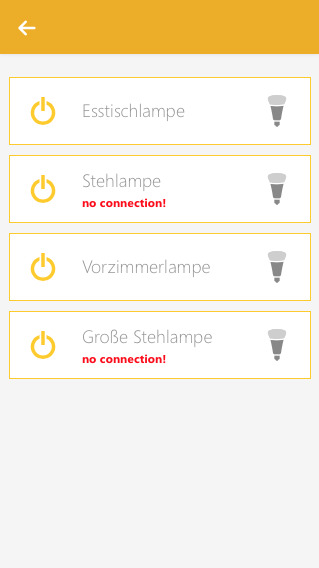
Use the "Show devices" button to display all currently connected Philips Hue devices.
All connected Philips Hue lights are also displayed in the "Lights" app, while all Philips Hue sockets are displayed in the "Sockets" app. The apps can be found under "All Apps" - "Lights" and "All Apps" - "Sockets", respectively.
Besides adding the Philips Hue Bridge and its connected lights to the Smart Building Automation system as described in the "Create" section, no further configuration is required. If Philips Hue lights are added or removed later, use the "Search for new lights" button in the Bridge's Operator Panel to search for lights again. Newly detected lights are then added to the system.
All connected Philips Hue Lights are added to the Lights App, which can be found under "All apps" - "Lights". They behave like RGBW lights and provide the same basic controls and functionality like changing color, adjusting brightness or creating scenes with the Scenes app.
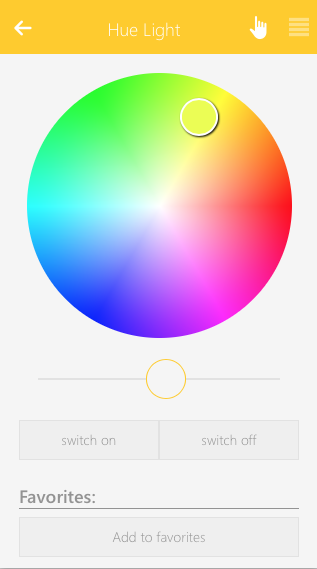
The OperatorPanel of each Philips Hue light provides you with a color wheel for selecting the desired color and a slider for adjusting the brightness. You can also add the current color/brightness combination to your favorites and activate them on demand.