House Status
The “house status” displays the current status of your house and lets you change it.
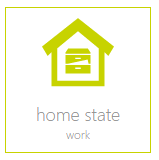
The “house status” is located under “all apps” – “house status”.

The “house status” displays the current status of your house and lets you change it.
The “house status” is located under “all apps” – “house status”.
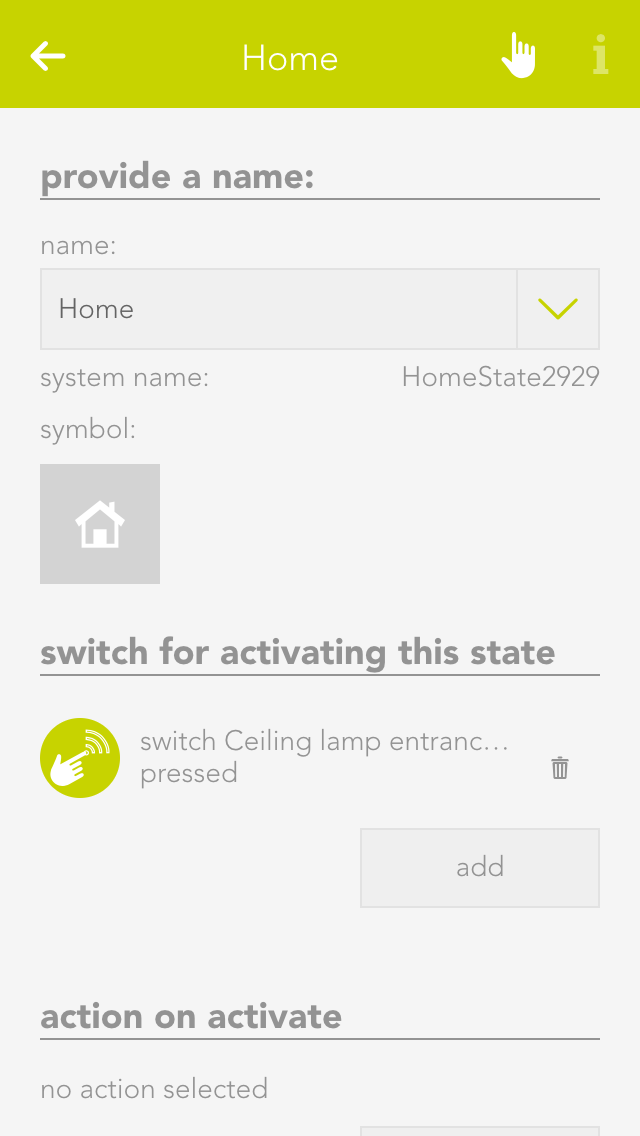
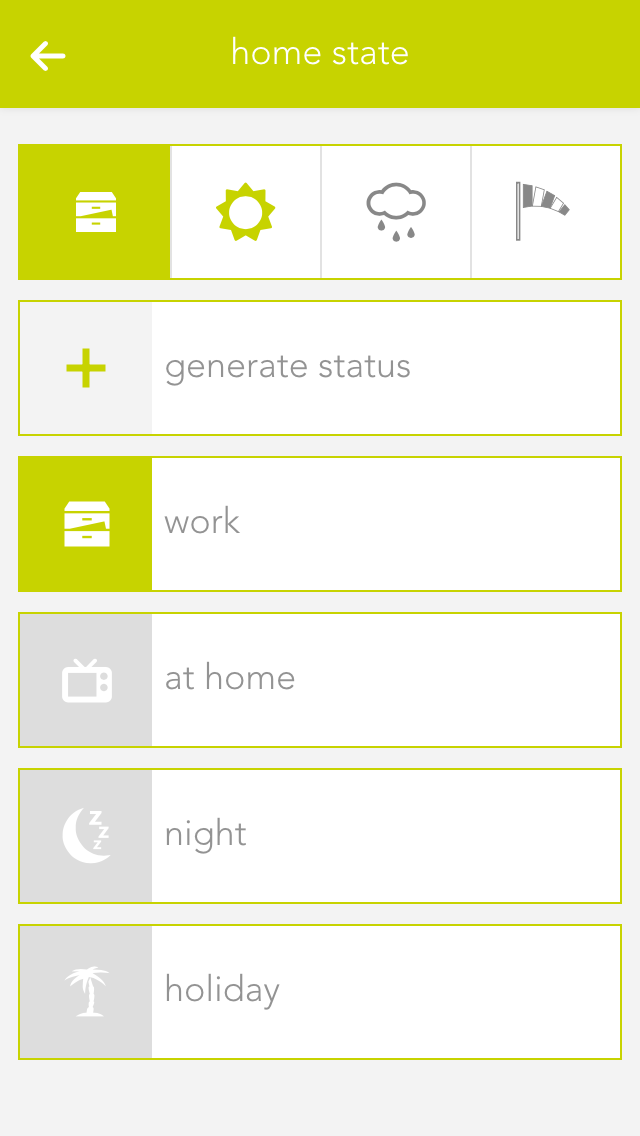
A new building status can easily be added by selecting “create status”. The operator panel then opens, where a name for the building status can be defined. Once a name has been assigned, the configuration can be continued (described below).
Each building status can be assigned a name and an icon. These are displayed in the Smart Building Automation System.
For each of your created house stati, you can define which button activates it and should happen if the status changes.
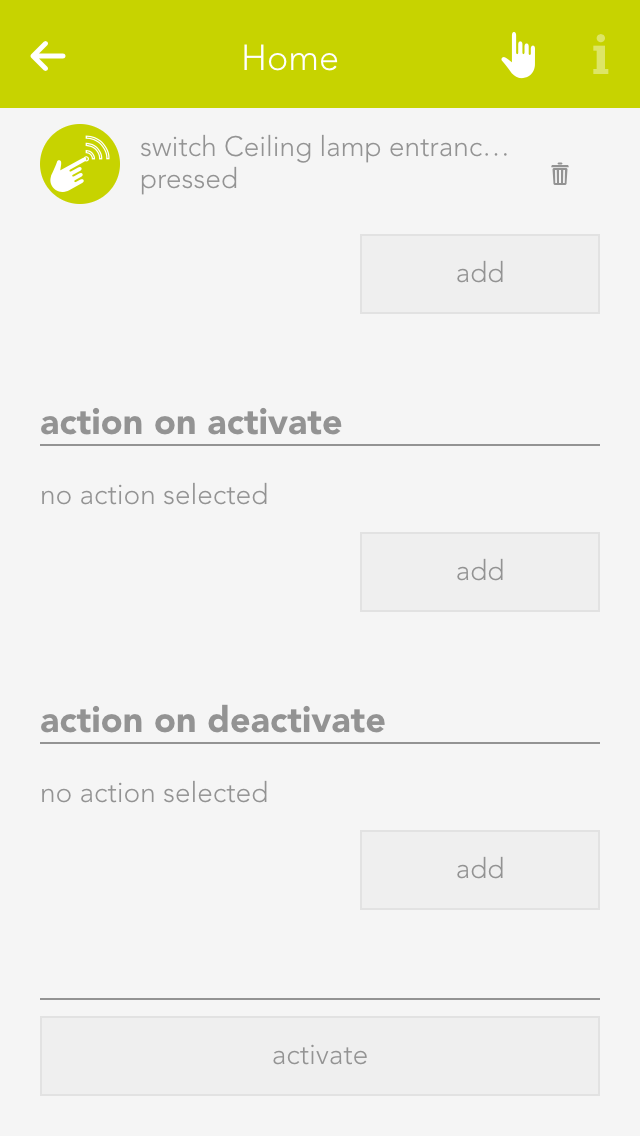
Button to activate this status
Select the button here that allows you to activate the corresponding status
Action when activated
Select here the action that is to be invoked when the corresponding house status is activated.
Action when de-activated
Select here the action that is to be invoked when the corresponding house status is de-activated
If you want to activate a status via the visualization, you can do this either in the left-hand area of the corresponding object panel or via the operator panel using the button “execute”.
The status that is currently active is displayed both in the object panel and in the house status panel. If you drag the house status to your favourites, then the current active status is displayed there too.
The house status panel not only displays the current status of your house, but also if dawn/dusk, rain or wind are active. You can configure where this information comes from in the “global settings”.
Der Hausstatus bietet folgende Auslöser für Szenen (wenn ...):
Der Hausstatus bietet folgende Funktionen für Szenen (dann ...):