Users & Groups

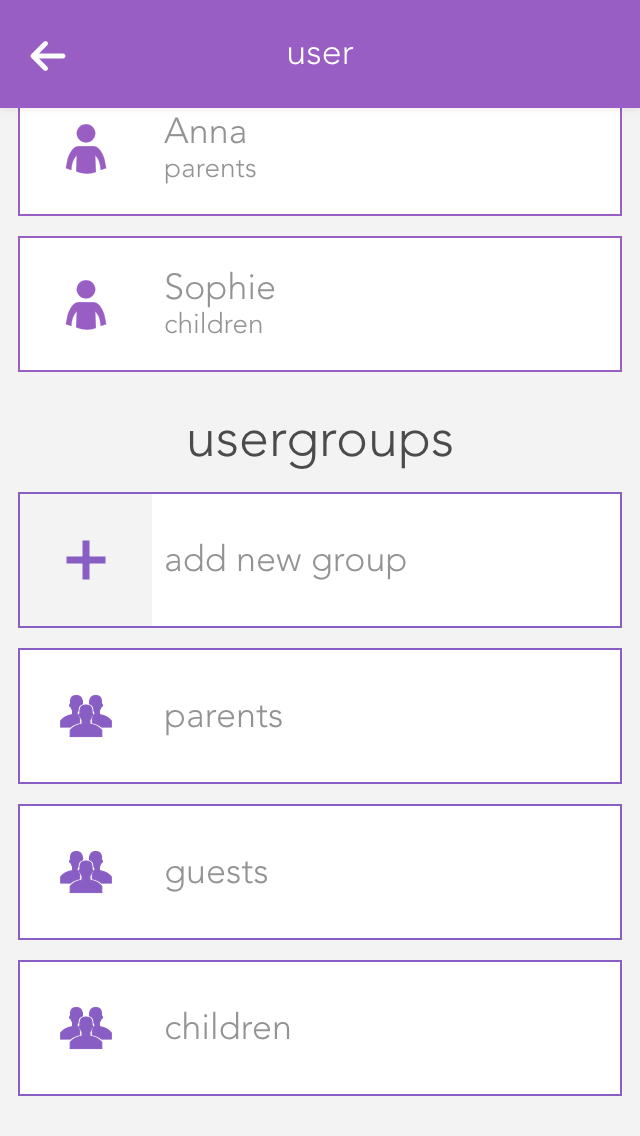
Users can be assigned different permissions in the Smart Building Automation system. For example, access can be restricted so that children can only use functions in their own rooms. Permissions can be managed using user groups.

Users and user groups can be found under "All Apps" – "Settings".

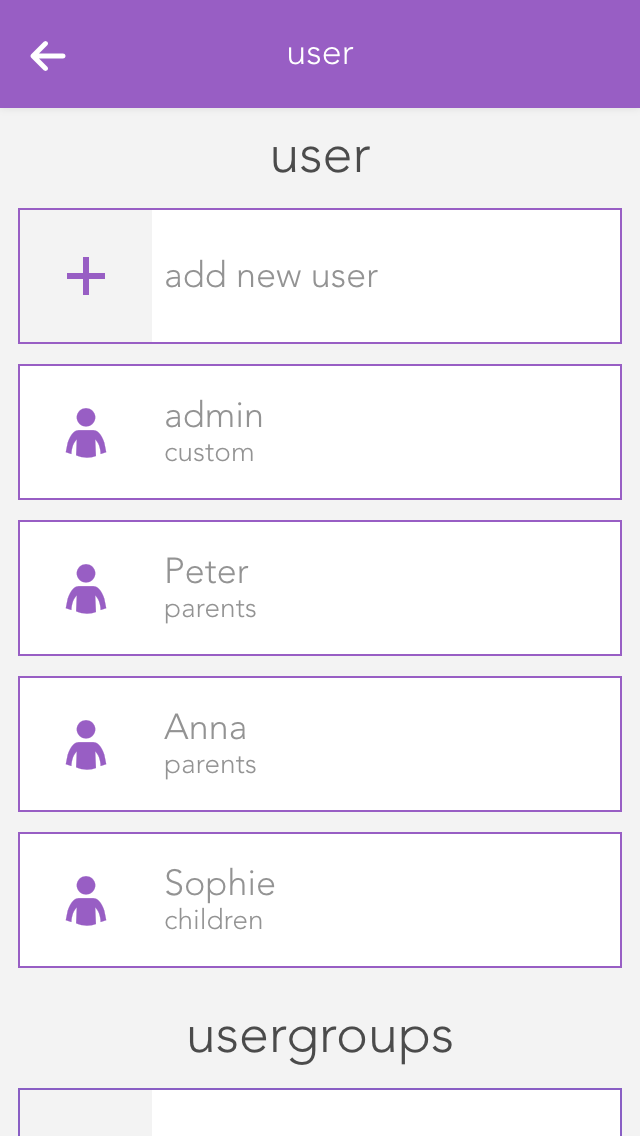
User

Users allow you to define individual access and permissions within the Smart Building Automation system.

Here you can add a new user or configure an existing one. To create a new user, select "Add user". A panel opens where you can enter the username and an optional description. Set a password for the user to allow login with the corresponding username.

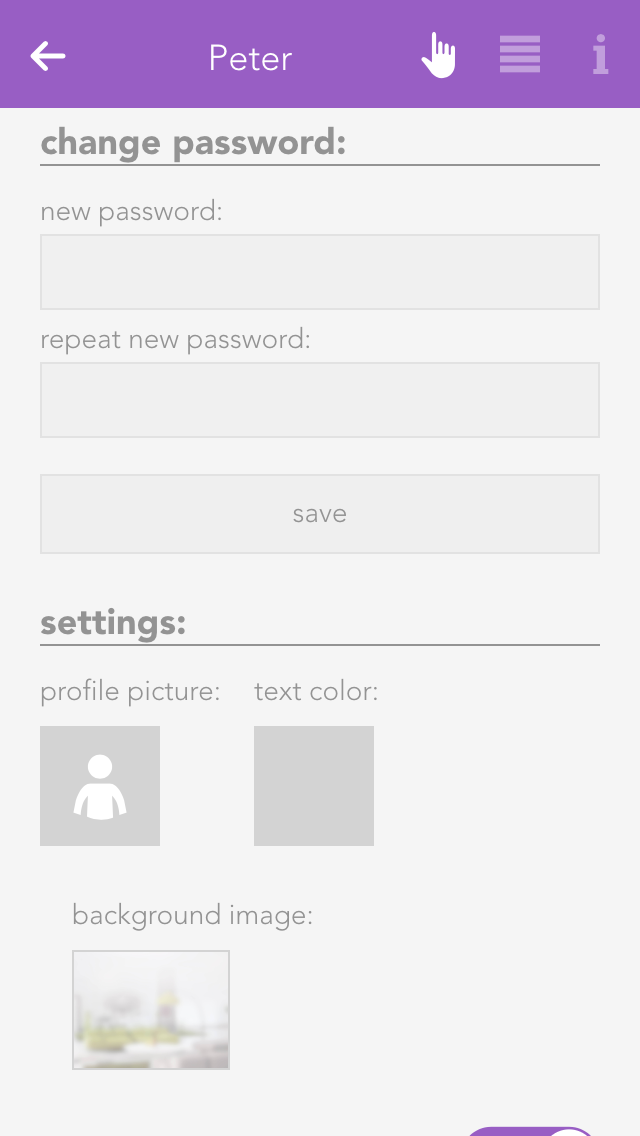
Settings

Profile picture
The profile picture to be displayed for this user.

Background picture and text colour
You change the background of your visualization as you wish. The text colour selects the colour of titles such as “favourites” on the home screen so that they are readable, even with other background pictures.

Show areas on the home screen
This setting lets you define whether areas will be displayed on this user’s home screen.

Own favourites
If you activate the option “own favourites”, you can customize the favourites on your own home screen without these changes being visible to other users. If this option is deactivated, then your favourites are shared with other users and any changes will be visible to all users.

Language
This lets you change the language for this user. To change the language of the current user, click on “load new language settings”.

Permissions

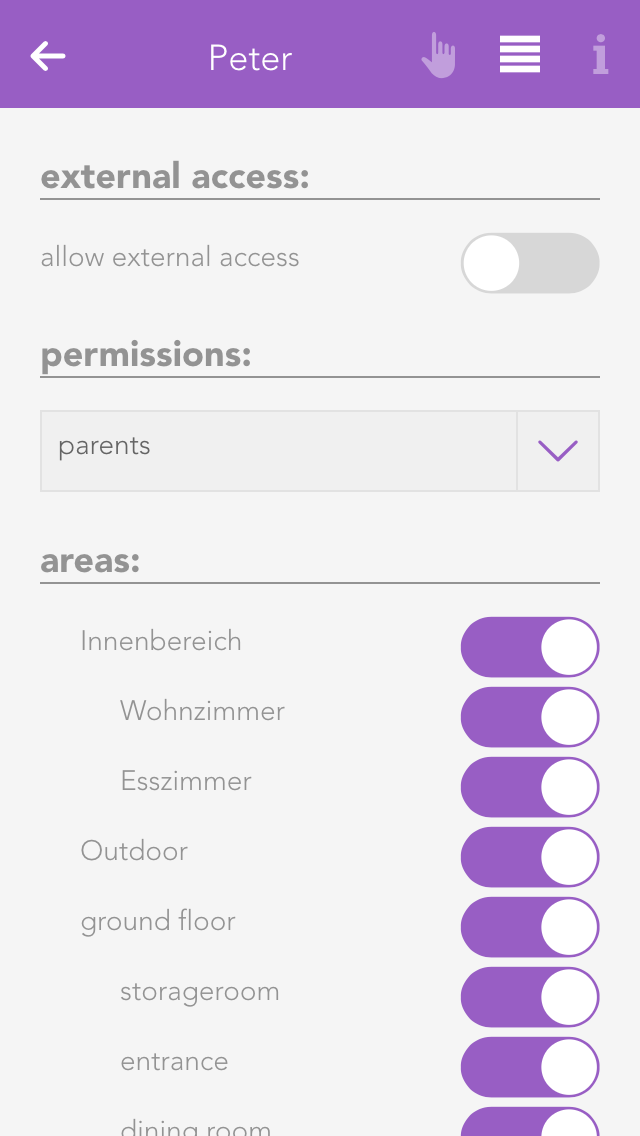
Allow external access
This option defines whether the user is allowed to connect to the Smart Building Automation system via external access.

Permissions
Here you can assign permissions to the user. To define permissions independently of a user group, select "User defined". The individual permissions are described further below. If the user should not have any permissions, select "No permissions".

Areas
In the "Areas" section, you can define which areas the user is allowed to access. If the user is assigned to a user group, the permissions for these areas are already defined by the group and can only be restricted further for the individual user.

Some changes cannot be made to the user currently used to log in. For example, administrator permissions cannot be removed and the currently logged-in user cannot be deleted.

Groups

User groups allow you to configure rights for several users.

The settings can be modified for a user group that already exists, or a new one can be created. To create a new user group, click on the element “add group”. This opens a panel where you can enter the name of the group (e.g. “guests”), and assign colour and an icon.

Permissions

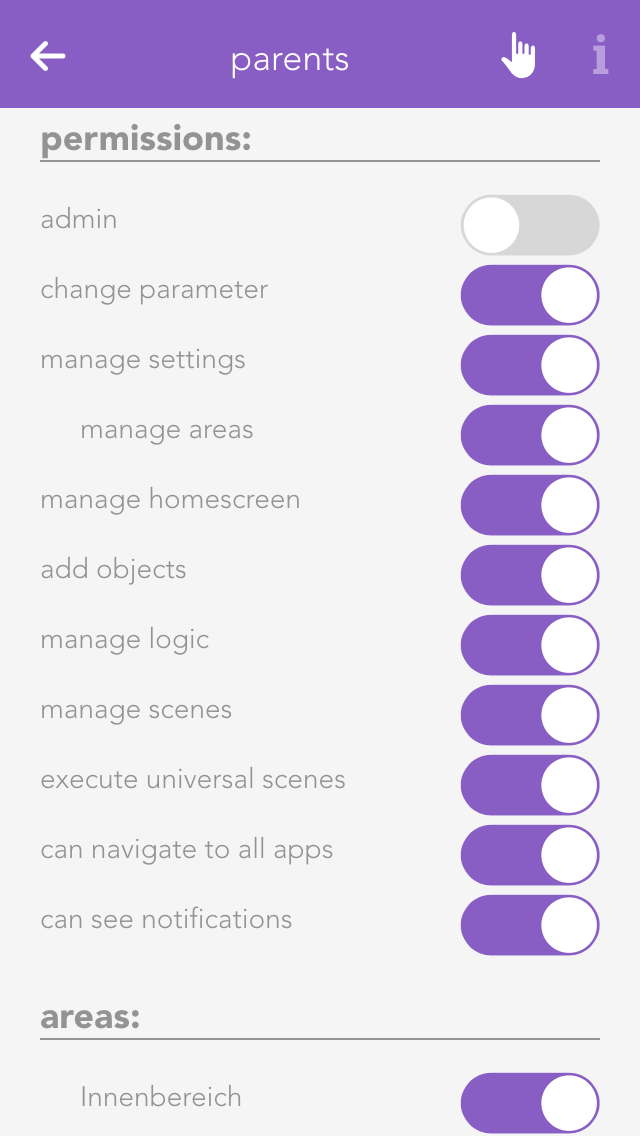
Permissions define which functions users in this group are allowed to access and use in the Smart Building Automation system.

Admin
This level of rights gives the user full access to all possibilities in the system. All the following rights are deactivated, since they are all included in the admin rights.

Change parameter
Users in this group are allowed to change parameters, i.e. all settings accessible via the parameter symbol.

Manage settings
The user can open the settings (all apps – settings) and make changes. Exceptions are the user settings.

Manage home screen
The user can change the start page of the app, in other words, they can set favourites and move elements. See also “own home screen”.

Add object
The user can add new objects to the system, for example a new surveillance camera, a new Denon system, etc.

Edit logic
The user can create and edit logic elements.

Edit scenes
The user can create and edit scenes; otherwise scenes can only be executed.

Edit area
The user can create and edit areas.

Execute universal scene
The user can execute universal scenes such as close all blinds, switch on all lights, etc.

See all apps
The user can open all apps, otherwise they only have the possibility to open apps that are on the home screen.

See notifications
Notifications are displayed for the user (such as wind, alarm system, etc.).

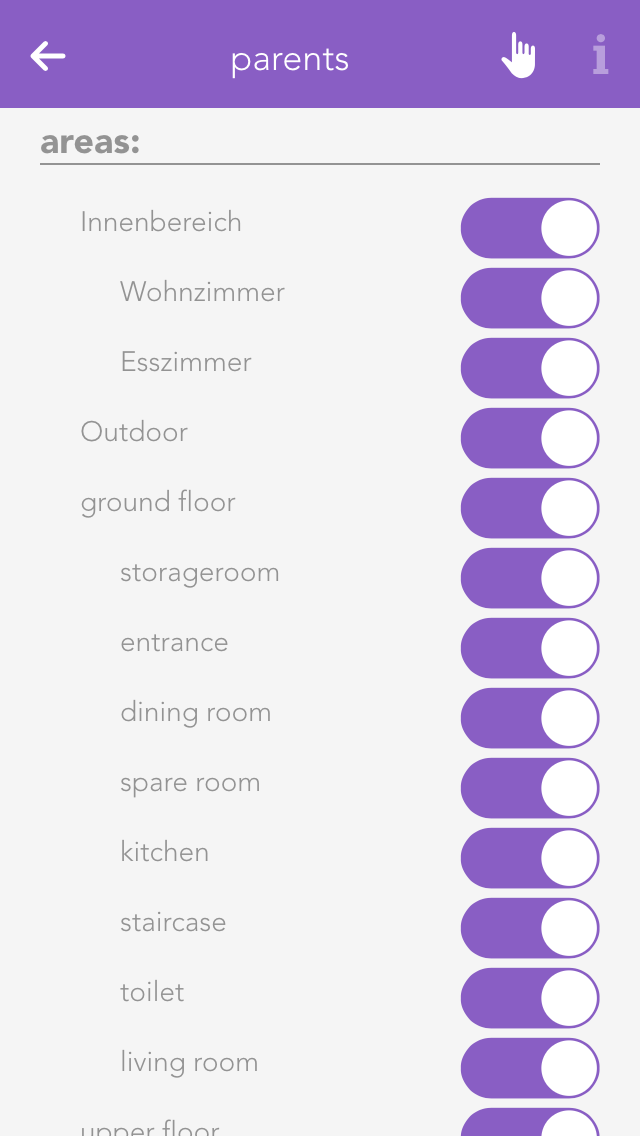
Areas

In “areas”, you can define which areas the users in the group will be able to access.