Blind
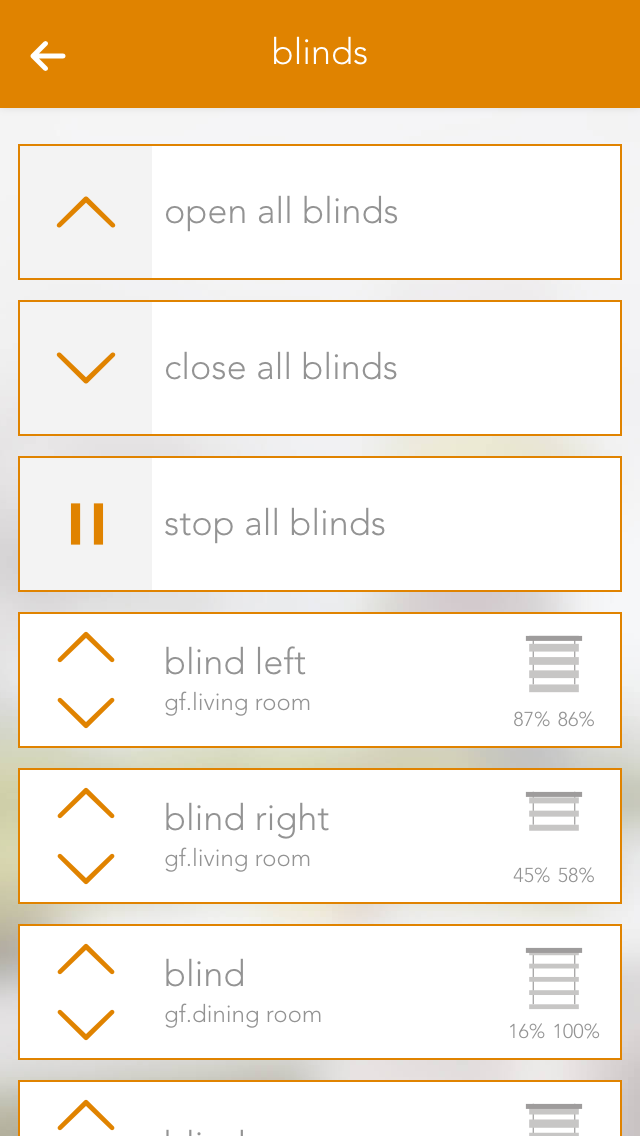
The app “Blinds” lets you operate and configure all shading elements in your system. You also have pre-defined functions such as “open all blinds” and “close all blinds”.
You can find Blinds under “all apps”.

The app “Blinds” lets you operate and configure all shading elements in your system. You also have pre-defined functions such as “open all blinds” and “close all blinds”.
You can find Blinds under “all apps”.
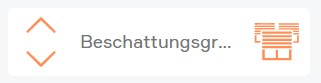
You can open or close your shading element using the arrows in the left-hand side of the object panel. The right-hand side of the panel shows the current position and the angle of the blinds.
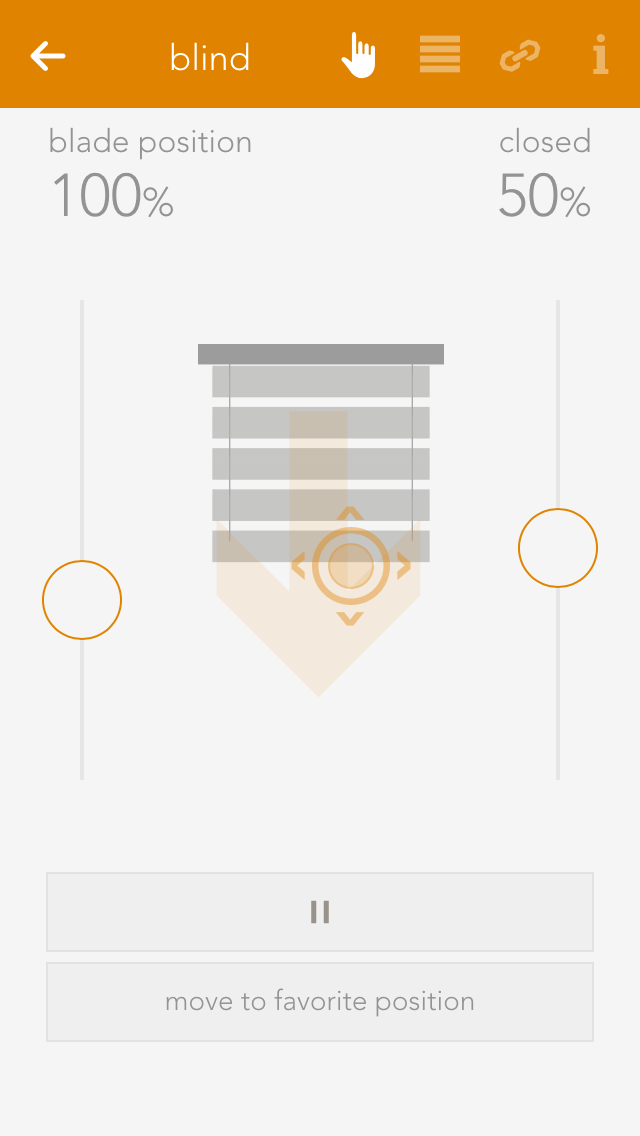
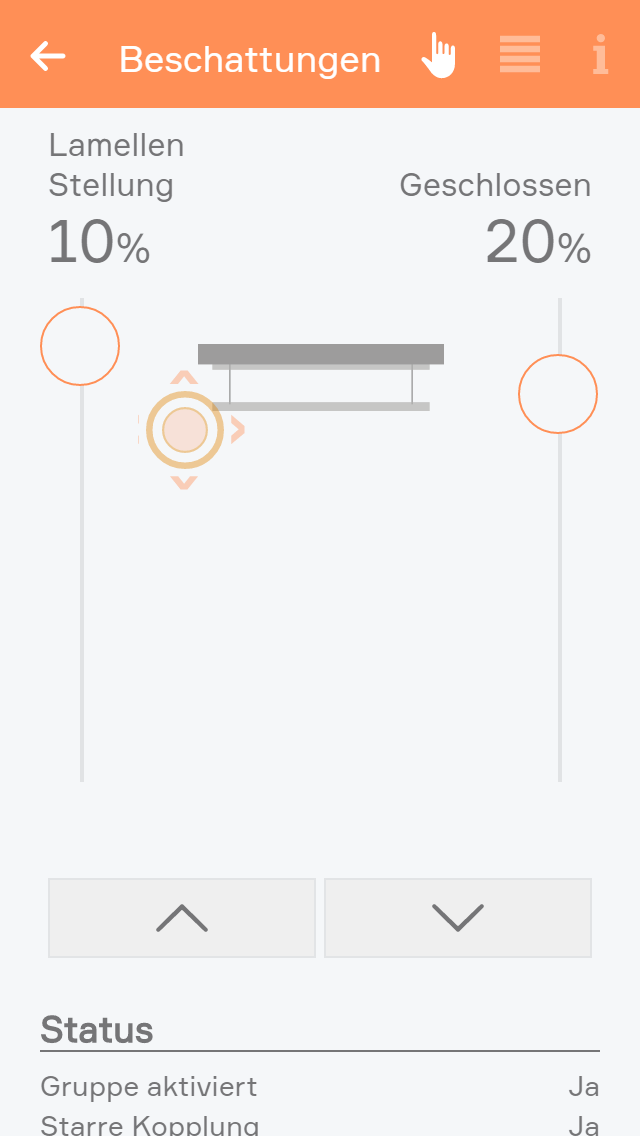
You can also operate each blind element via the operator panel by using the sliders on the right and on the left, or dragging the point in the middle of this window to the desired position. If you have defined a favourite position and wish to use it, simply click on the button “go to favourite position”.
Die Beschattung bietet folgende Funktionen für Szenen (dann ...):
Beschattungselemente können unter den erweiterten Einstellungen von Universalszenen ausgenommen werden. Für ausgenommene Elemente werden die Szenen-Funktionen „Alle...“ nicht angewendet.
Apart from giving the shading elements individual names, you can customize them further to suit your needs.
Mode
This option is available when the Schrack Smart Building Automation shading module "B1344" (Schlotterer RETROLux) is used. The operating mode can be changed from "standard blind" to "without working position" or "with working position". In this context, "working position" refers to a blind with a mechanical working position.
With working position
This mode is intended for Schlotterer RETROLux venetian blinds with a mechanical working position. A short button press changes the slat position and allows switching between "closed" and "working position". In this mode, the slats can only be adjusted within a certain range due to the mechanical design of the blind.
Without working position
This mode is intended for Schlotterer RETROLux venetian blinds without a mechanical working position. This mode grants you the ability to simulate a working position.
Type
This setting defines whether the shading element is a rolling shutter or a window. Windows are described in a separate chapter. A jalousie has a position, slat angle, and turnaround time, all of which are taken into account during movement. A roller shutter does not have a slat angle.
Vertical jalousie
This setting can be used for a jalousie that opens and closes vertically. When activated, an additional option is available for defining the opening direction.
Remove from universal scene
Universal scenes can be used, for example, to "open all blinds". Activate this option to exclude the shading element from universal scenes.
Remove from wind-lock
Activate this option to prevent the blind from opening automatically during strong winds. If this option is not available, the wind-lock must first be activated under "all-apps – settings – shading".
Lock blind
Activate this option to lock the blind. While locked, the shading position cannot be changed via the app or a button.
Close at dusk
Activate this option to automatically close the shading element at dusk.
Reserve
If a module has unused outputs, the corresponding shading elements are still displayed. The reserve function can be used to hide these unused elements in the app. To display them again, activate the corresponding elements in the module under the hardware section.
Extended parameter
When the Schrack Smart Building Automation shading module "B1344" is used in combination with a Schlotterer venetian blind and the appropriate operating mode is selected, additional options are available here.
These options relate to the different movement times specific to Schlotterer blinds, such as the working position and snapping times. The settings are preconfigured for optimal operation. If problems occur when switching between positions, contact the Smart Building Automation partner responsible for the system to have these settings adjusted.
Travel time wizard
This wizard lets you easily and simply determine the travel times for your shading element. Simply follow the instructions and your travel times will be configured for you.
Use these travel times for all blinds
Pressing this button opens a dialog where you can have all blinds use these travel times. This is useful if all blinds are of the same type and you do not wish to have individual times for each blind.
You can save your favourite blind position either by entering the values by hand or pressing the button “use current position as favourite”. The favourite position can be triggered via a scene.
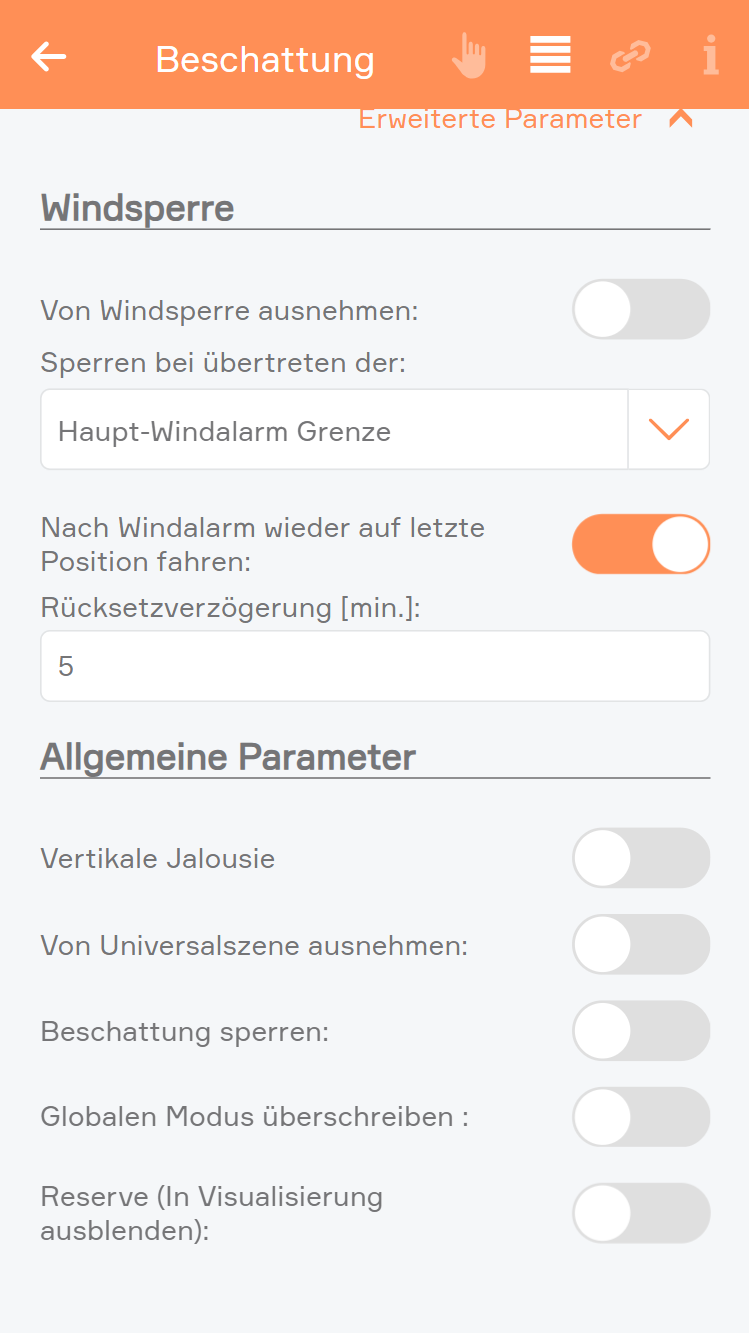
Windsperre:
Von Windsperre ausnehmen
Wenn Sie nicht wollen, dass sich ein Beschattungselement bei zu starkem Wind öffnet, so müssen Sie diese Option aktivieren. Wenn diese Option nicht sichtbar ist, so müssen Sie erst in den Einstellungen (Alle Apps – Einstellungen – Beschattung) die Windsperre aktivieren.
Sperren bei übertreten der Grenze
Wenn das Beschattungselement bei zu starkem Wind gesperrt werden soll kann hier bestimmt werden, ob diese bei der Haupt-Windgrenze, Windgrenze 1 oder Windgrenze 2 gesperrt werden soll. Die Grenzen können unter Einstellungen > Globale Einstellungen definiert werden.
Nach Windalarm wieder auf letzte Position fahren:
Wenn Sie wollen, dass ein Beschattungselement nach dem Windalarm wieder auf die letzte Position fährt, so müssen Sie diese Option aktivieren. Wenn diese aktiviert wurde, erscheint ein Eingabefeld, in dem Sie eine Verzögerungszeit von 5 bis 60 Minuten wählen können, welche ablaufen muss, bevor die Beschattung nach dem Windalarm auf die letzte Position zurück fährt.
Allgemeine Parameter:
Vertikale Jalousie
Wenn Sie eine Jalousie haben, die vertikal schließt bzw. öffnet, so können Sie dies hier einstellen. Haben Sie dies aktiviert, erscheint eine weitere Option mit der Sie die Öffnungsrichtung bestimmen können.
Von Universalszene ausnehmen
Als Universalszene gilt z.B. „Alle öffnen“. Wollen Sie aber, dass ein Beschattungselement nicht über diese Universalszenen mitgeschalten wird, so müssen Sie diese Option aktivieren.
Beschattung sperren
Mit dieser Option können Sie ein Beschattungselement sperren. D.h. die Position des Beschattungselementes kann nicht mehr über die App oder Taster verändert werden.
Globalen Modus überschreiben
Mit der Option können Sie für diesen Kanal den globalen Modus für die Steuerung mittels Taster überschreiben (Kurzer Tastendruck - ganz auf, Kurzer Tastendruck - Lamellen stellen)
Bei Dämmerung schließen
Wollen Sie, dass sich dieses Beschattungselement bei Dämmerung schließt, so müssen Sie diese Option aktivieren.
Reserve
Wenn Sie ein Modul haben, an dem Sie nicht alle Beschattungselemente angeschlossen haben, werden trotzdem auch die Elemente angezeigt, an denen nichts angeschlossen ist. Mit Reserve können Sie nicht verwendete Beschattungselemente in der App ausblenden. Über die Hardware und das entsprechende Modul können Sie dieses Beschattungselement wieder einblenden.
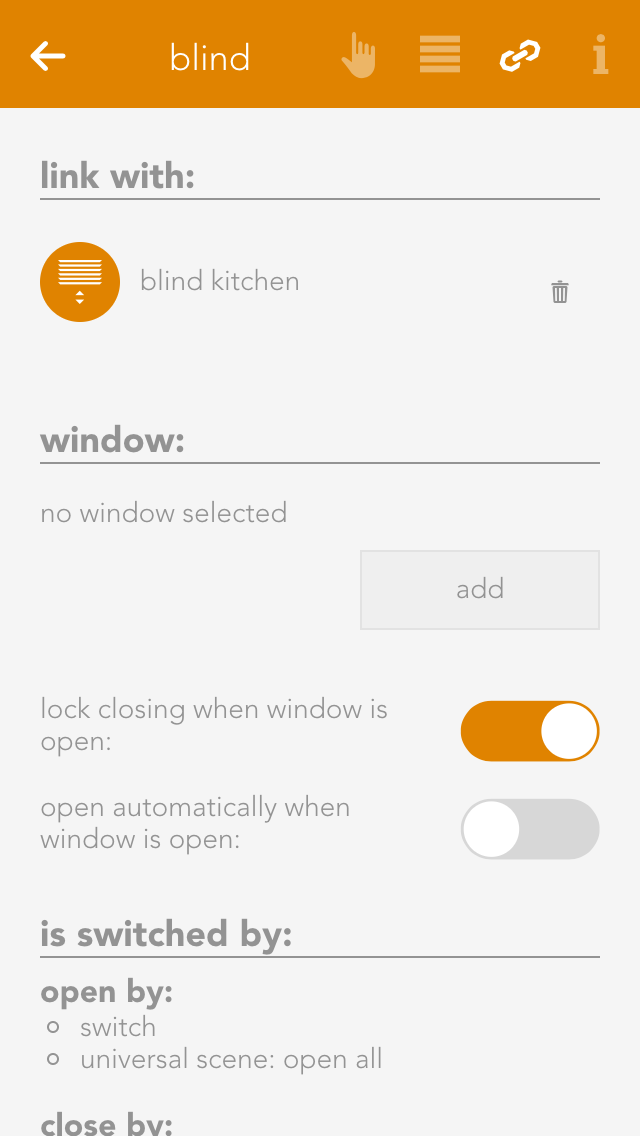
Linking allows shading elements to be connected to other elements in the Smart Building Automation system.
Connect with
To keep two shading elements at the same position and slat angle, use "connect with". Navigate to "connect with" and select "select" to choose the shading element to be connected.
Über die Gruppenfunktion lassen sich mehrere Beschattungen zu einer Gruppe zusammenfassen. Dadurch werden alle gleichzeitig geschalten.
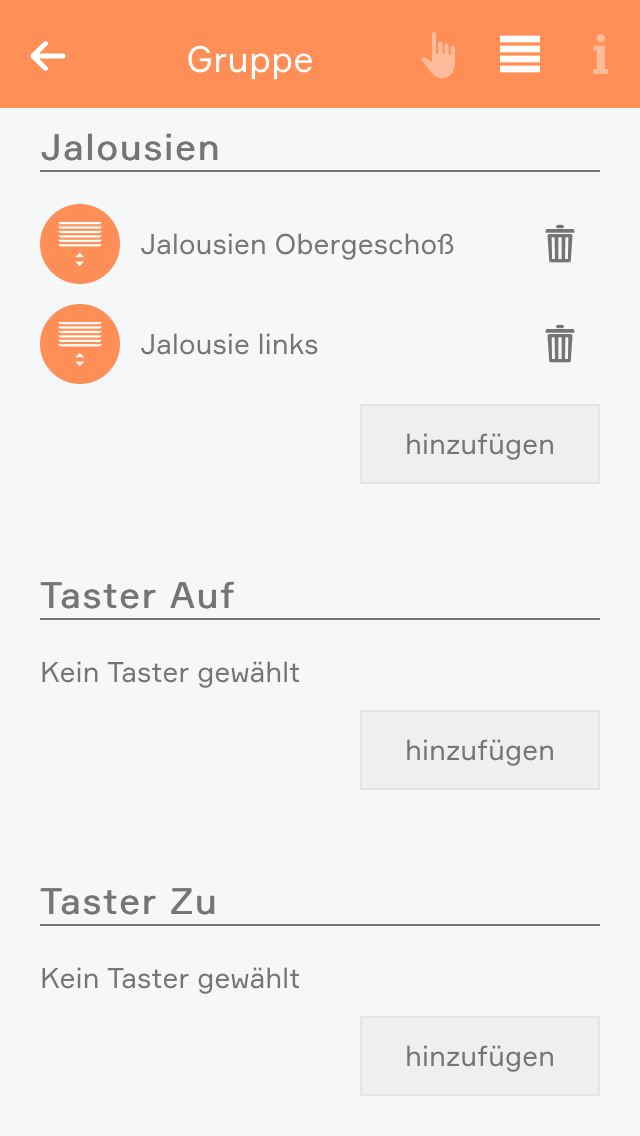
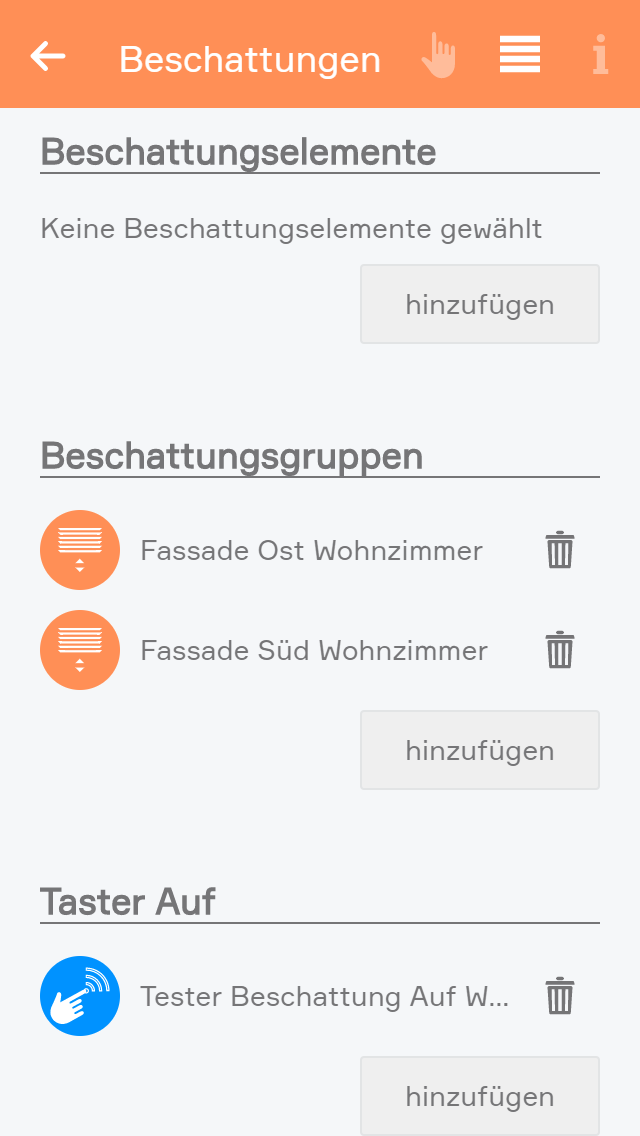
Um eine neue Beschattungsgruppe anzulegen, wählen Sie „Neue Beschattungsgruppe“ innerhalb der Beschattungs-App.
Eine neue Beschattungsgruppe wird erstellt.
In den Einstellungen der Gruppe sollten Sie als erstes einen Namen vergeben und einen Raum zuordnen.
Hier haben Sie außerdem die Möglichkeit, die Gruppe zu deaktivieren. Dadurch können Sie eine bereits konfigurierte Gruppe temporär abschalten, ohne sie löschen zu müssen.
Fügen Sie nun mehrere Beschattungselemente hinzu. Sie habe die Möglichkeit die Gruppe in 2 Betriebsarten zu betreiben: „Starre Kopplung“ oder „Lose Kopplung“.
Starre Kopplung: Starre Kopplung: Dieser Modus ist sinnvoll, wenn Sie Beschattungselemente der gleichen Größe (Fensterhöhe) zu jedem Zeitpunkt auf derselben Position wünschen. Alle Beschattungselemente einer Gruppe fahren somit immer auf dieselbe Position und den Lamellenwinkel (falls vorhanden). Dabei ist es unerheblich ob der Befehl als Einzelbefehl über die App, als Gruppenbefehl über die App, den Autark-Taster oder den Gruppentaster erfolgt ist, die Position wird immer synchronisiert.
Lose Kopplung: Dieser Modus erlaubt das gemeinsame Heben und Senken von unterschiedlichen Beschattungselementen über einen oder mehrere Gruppentaster. Die Beschattungselemente können aber jederzeit über Einzelbefehle aus der App oder den Einzeltaster (Autarkfunktion) individuell positioniert werden.
Bei einer Beschattungsgruppe mit starrer Kopplung können Sie im Operator Panel mit den gewohnten Bedienelementen die Beschattungen in beliebige Positionen bewegen, öffnen, schließen und stoppen.
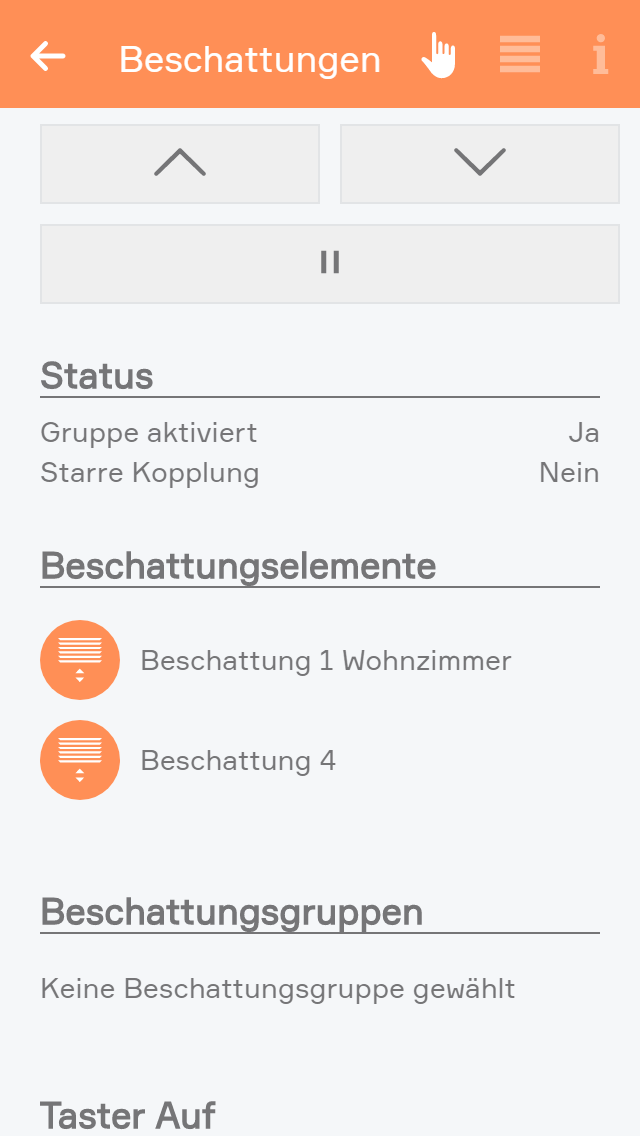
Bei einer Beschattungsgruppe mit loser Kopplung können Sie im Operator Panel die Beschattung öffnen, schließen und stoppen.
Bei Beschattungsgruppen mit loser Kopplung haben Sie zusätzlich die Möglichkeit andere Beschattungsgruppen hinzuzufügen. Dadurch ist es möglich mehrere Beschattungsgruppen mit externen Tastern zeitgleich zu steuern, diese Gruppen jedoch auch noch getrennt über andere Taster zu steuern.
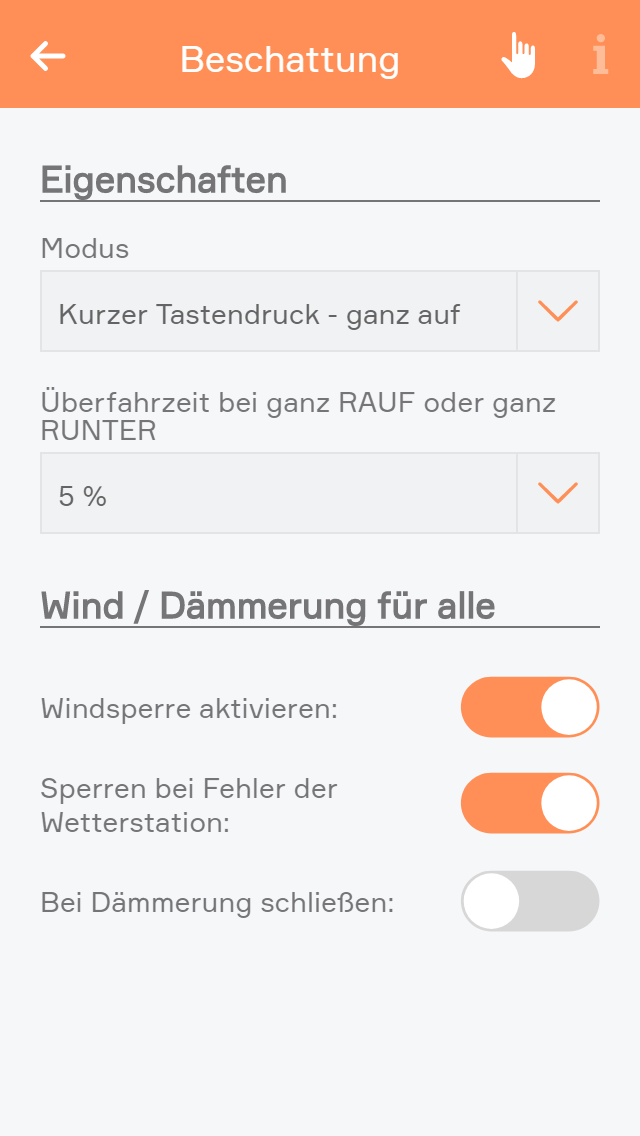
Settings contains the configuration for general settings that are valid for all shading element. Navigate to “all apps – settings – blinds”.
Mode
Short button press – completely up: If the blinds button is pressed for a short period of time, then the blinds will travel in the desired direction until either the blinds are fully open/closed, or a further press of the button causes them to stop where they are. A long button press sets the angle for the slats, i.e. after a wait time to correctly identify a long button press, the blind slats begin to turn until the button is released.
Short button press - set slats: A short button press changes the angle of the blinds and a long button press completely opens or closes the jalousie. A second button press interrupts the travel and the jalousie stops where it is.
Over-travel time
The over-travel time lets you define the percent of time to increase the time that the jalousie takes for completely UP to completely DOWN. This makes sure that the blinds are really open or closed.
Activate wind lock
If you have activated this option, then all shading elements are closed if it is windy. If you want to exempt elements from this wind lock, it can be done for each individual element.
Close at twilight
If “close at twilight” is selected, then all blinds will close as soon as twilight is detected. If you do not want all blinds to close at twilight, then deactivate “close at twilight” for each individual blind. In addition, you can also delay the closing at twilight by entering the number of minutes you wish to wait after twilight until the blinds close.