Camera
The "Camera" app enables the integration of a SchrackCAM into the Smart Building Automation System.
The Camera app is located under "all apps" – "Camera".

The "Camera" app enables the integration of a SchrackCAM into the Smart Building Automation System.
The Camera app is located under "all apps" – "Camera".
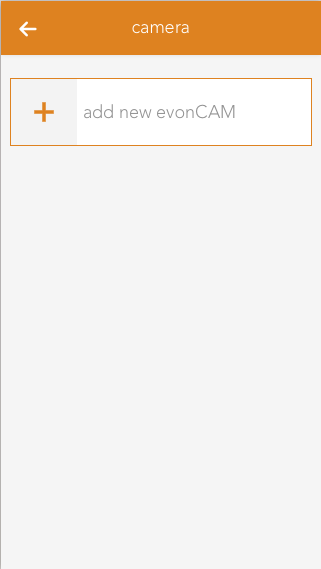
In order to create a camera, click on the box “add new SchrackCAM” inside the app.
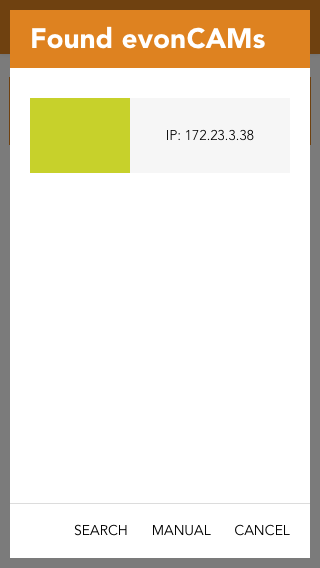
All found SchrackCAMs including a preview image will now be listed in the popup which appears. Once a camera shows up on this list you can select it and it will be added to your system and is ready to be used.
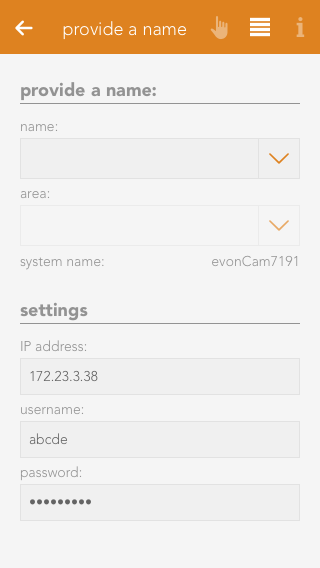
If the camera is not found within network, the search can be restarted or the camera can be configured manually. For manual configuration, a camera is added to the system and the required settings (IP address, username, and password) must be entered.
To configure the camera correctly, the camera's IP address must be entered in the browser.
If the camera was automatically detected and added as described in the create section, no further configuration is required.
For manual integration, for example if the camera could not be found automatically within the network, the required settings can be entered or changed at any time in the camera's Parameter Panel.
The settings may also need to be adjusted if the default username or password has been changed or if the IP address changes.
If the camera credentials (username/password) are changed via its web interface, the app or browser may request the new credentials.
In this case, the new credentials must also be updated in the camera's Parameter Panel. Otherwise, the credentials may be requested repeatedly.
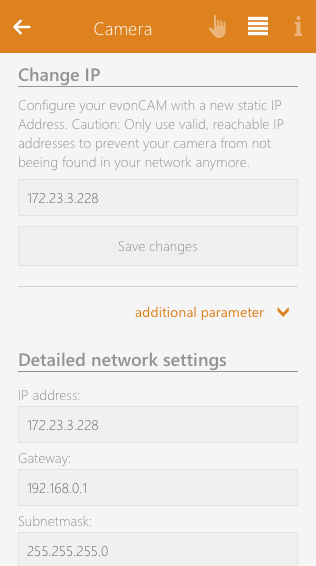
A specific static IP address can also be assigned to the camera. When this setting is changed, the new network configuration is transferred to the camera. The camera then restarts with the new configuration.
When the IP address is changed, other relevant network settings, such as the gateway and subnet mask, are taken from the current network configuration of the Smart Building Automation System. For individual configuration of these settings, an advanced form is available under “Additional Parameters”.
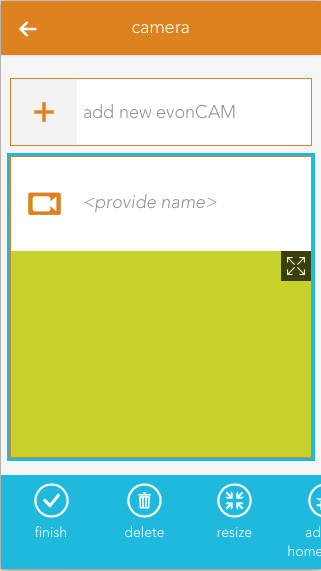
The camera panel supports two different sizes. If you hold down your finger (cursor+left mouse button) on the panel for some seconds a bar will appear on the bottom of your screen, which gives you the ability to change the size from small to large.
The large size supports displaying the current camera video inside the panel. Like most other panels, you can add this to your favorites on the start screen which will allow you to always see the current camera image.
With the icon located on the top right corner of the camera image, you can open a popup with bigger view of the video stream, which is well suited for bigger screen sizes like tablets.
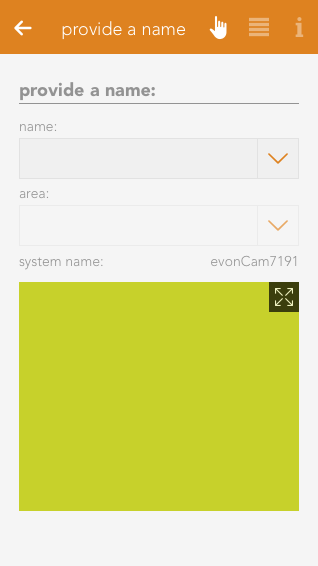
The camera OperatorPanel displays the current video/image if the correct credentials are added in the settings. You can also open a popup containing a bigger sized version of the camera image by clicking the icon in the top right corner of the image.
If you did not enter a name for the camera yet, the associated input field will also appear here.
Die Kamera bietet folgende Auslöser für Szenen (wenn ...):
Die Kamera bietet folgende Möglichkeiten für die Verwendung in Logiken: